

Setting Up n8n User Management Before Your Team Outgrows Shared Logins
A practical guide to n8n user management: inviting users, choosing instance and project roles, and structuring projects and credentials for a growing team.

Checked against the cited sources on .
Why shared logins become a liability as a team grows

Most small teams start n8n the same way: one person creates the account, and everyone who needs to build or edit a workflow uses that same login. It works until it doesn't. As soon as a second or third person needs to touch workflows and credentials, a single shared login turns into a liability. Setting up n8n user management early — before headcount forces the issue — gives each person their own account, their own permissions and a record of what they changed, instead of one anonymous identity everyone borrows.
The practical cost of skipping this shows up quietly. n8n's documentation notes that workflow authorship isn't tracked, so there's no way to see who created a particular workflow (F8) — a gap that only gets worse when several people share one login, because even the account name on file stops meaning anything specific. We'd treat this as more than a hygiene issue: once attribution disappears, so does accountability for what a workflow actually does and who is responsible for fixing it.
None of this requires a bigger plan or a migration: every account can have the basic Owner or Member instance role regardless of edition, and it's only specific capabilities — the Admin instance role, or project-level roles — that are gated by plan (F1, F9).
Sources: Manage users and access | Administer | n8n Docs, Understand instance roles | Administer | n8n Docs, Set permissions and roles (RBAC) | Administer | n8n Docs
What n8n's user management feature covers
n8n user management covers everything needed to go from one shared login to a managed team: inviting people as named users, assigning each one a role, and keeping a single view of who has access. The built-in instance roles are Owner, Admin and Member, with Admin available only on n8n Cloud Pro, Enterprise and self-hosted Enterprise (F1). The Settings > Users page lists every account on the instance, including people who have been invited but haven't yet accepted (F2), so an admin can see exactly who still needs to set up their login.
User management also covers what happens when someone leaves. Removing an active user isn't a single click: the admin has to decide whether to copy that person's workflows and credentials to a replacement user or delete them for good (F3). That choice matters more than it looks, because it's the moment unlinked, unattributed work either gets rescued or disappears for good.
The gap between plans matters when budgeting for headcount growth. A team can invite named Members on any plan, but only n8n Cloud Pro, Enterprise or self-hosted Enterprise accounts unlock the Admin role that can see and share every workflow instance-wide (F1). Knowing that before rollout avoids discovering mid-project that the current plan doesn't support the oversight the team assumed it had.
Sources: Manage users and access | Administer | n8n Docs, Add and remove users | Administer | n8n Docs
Setting up n8n user management and inviting your first users
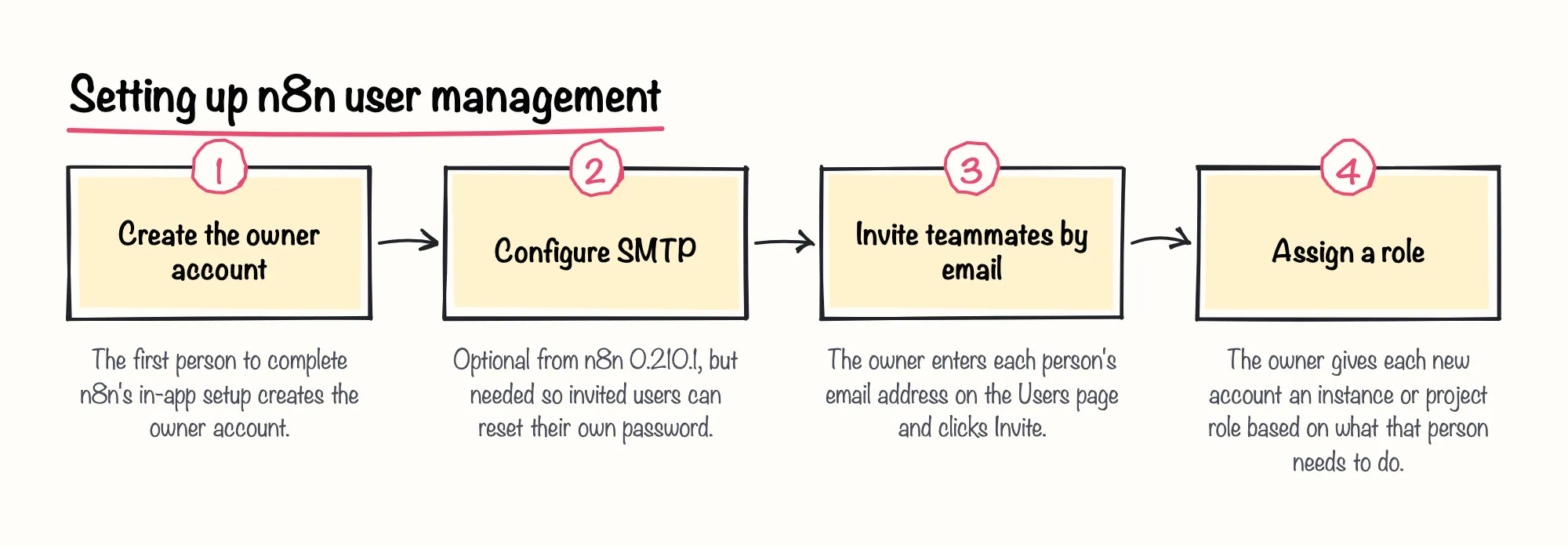
Turning on n8n user management is a short setup, not a project. The instance owner configures SMTP, invites each teammate by email from the Users page, and lets each person choose their own password instead of sharing the owner's. New users can be invited directly from the owner account's Users page by entering their email address and clicking Invite (F6).
The exact click path is straightforward once SMTP is in place. From the owner account, open the three-dot menu by the user icon, select Settings, then Users, and click Invite to enter a new teammate's email address (F6). Submitting the invite sends an email with a link the new person uses to set their own password, so the owner's password never has to be shared with anyone (F6).
None of these steps require the new teammate to contact the owner directly. Once SMTP is configured, the invite email contains everything they need to set a password and get started on their own (F6, F4). That's a deliberate design choice: inviting people as named users, rather than onboarding them into a shared password, is the whole point of setting up user management in the first place.
Sources: User management | Deploy | n8n Docs
Configuring SMTP for invites and password resets
SMTP configuration used to be mandatory for every self-hosted instance; it became optional starting in n8n version 0.210.1 (F4). That flexibility helps for a quick test, but it carries a real cost on anything meant to last: if a team skips SMTP, invited users can't use the password reset flow (F5), so every forgotten password becomes a manual job for whoever holds the owner account.
In practice, we'd configure SMTP during the very first setup pass, even on a small self-hosted instance, because it takes only a few minutes now and removes a recurring support burden later, once more than two or three people depend on resetting their own passwords.
Enabling SMTP on a self-hosted instance means setting the mail server's details through environment variables rather than through a settings screen in the app, since that configuration is applied via environment variables (F4). It's a one-time step for whoever manages the deployment, not something each invited user has to think about.
Sources: User management | Deploy | n8n Docs
Creating the owner account and inviting teammates
With SMTP configured, each teammate receives their own invite rather than the owner's password, following the same Users page flow described above (F6).
n8n's own documentation recommends that the instance owner create a second account with the Member role for day-to-day work, rather than building workflows while logged in as Owner (F7). That follows directly from the attribution gap described earlier: an owner who keeps editing directly can end up silently overwriting a teammate's work without anyone noticing (F8).
Sources: User management | Deploy | n8n Docs, Understand instance roles | Administer | n8n Docs
Choosing the right roles for your plan
Once every person has their own login, the next decision is what each person can actually do. n8n's role system works at two levels: instance roles that apply across the whole account, and project roles that apply inside a single project. Both are gated by plan, and project roles are available more broadly than custom roles, which are detailed in the sections below (F9, F10).
A common starting structure gives everyone Member at the instance level, creates one project per team or client, and assigns Project Admin to whoever owns that project's day-to-day decisions. Owner-level Admin accounts, or project-scoped Editor and Viewer roles, can then be added once a specific need for instance-wide oversight or read-only access appears (F9, F10).
Self-hosted teams face an extra wrinkle: project roles need at least a Registered Community edition rather than the fully unregistered open-source build, and custom instance or project roles require the self-hosted Enterprise tier specifically (F9, F10). Checking the team's actual plan against these requirements before promising a colleague a particular role avoids an awkward walk-back later. It's a small amount of homework that pays off the first time someone asks for a role the current plan doesn't include.
Sources: Set permissions and roles (RBAC) | Administer | n8n Docs
Instance roles: Owner, Admin and Member
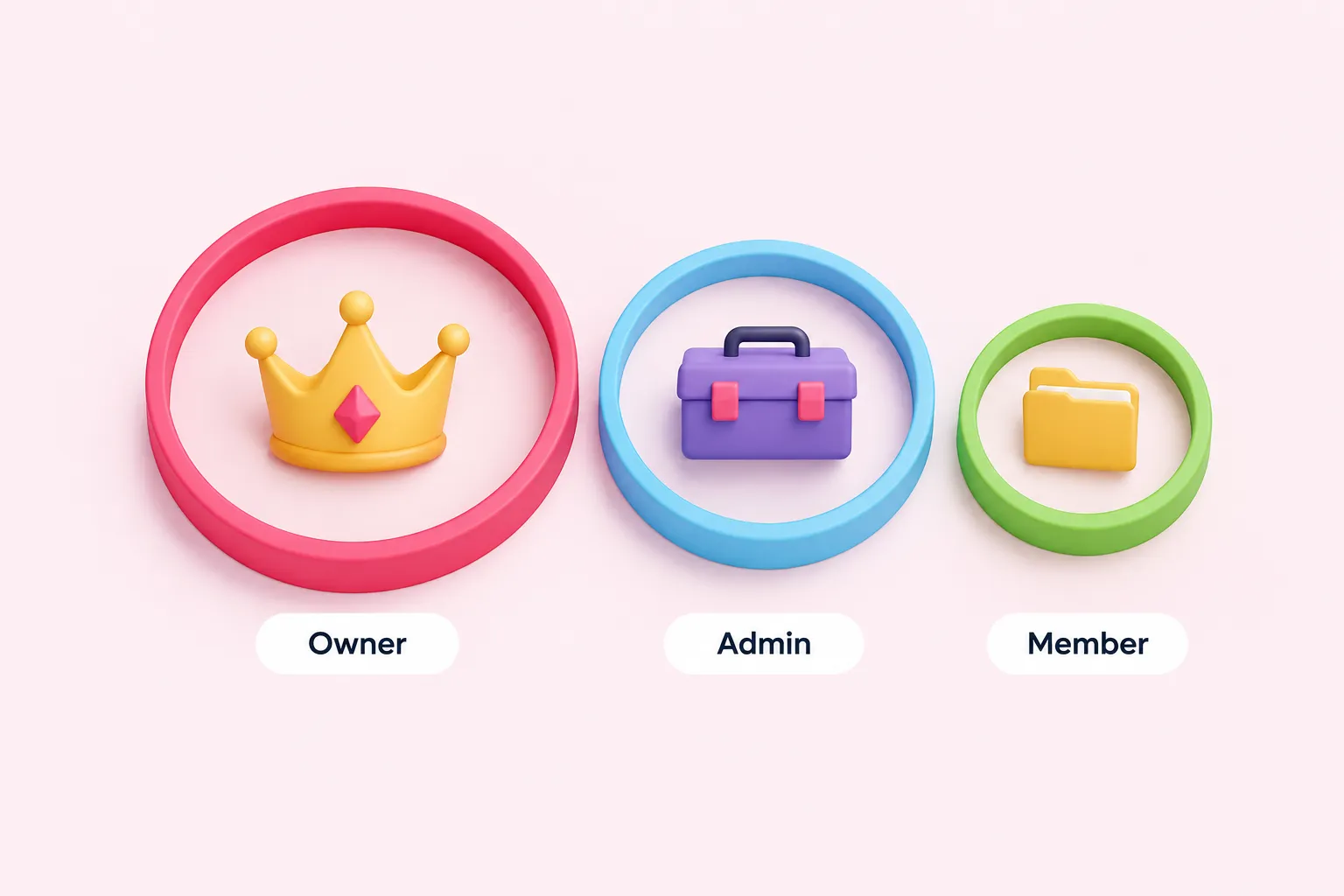
Owner, Admin and Member make up n8n's three instance roles; Admin's plan requirements are covered above (F1). Owners and Admins can see and share every workflow on the instance, not just their own (F18); Members are scoped to whatever has been explicitly shared with them. That asymmetry is the point of the role split: Owner and Admin exist for people who genuinely need instance-wide oversight, not for everyone who happens to build workflows.
Because Owner and Admin both see and share every workflow instance-wide, it's worth keeping both roles rare rather than handing them out by default. A small number of Owner or Admin accounts, with everyone else on Member or a project-scoped role, keeps the pool of people who can touch any workflow on the instance small enough to actually review (F18).
| Role | Typical scope | Plan requirement |
|---|---|---|
| Owner | Full control of the instance, created during initial setup | All n8n Cloud and self-hosted plans |
| Admin | Instance-wide visibility, user management and sharing of every workflow | n8n Cloud Pro, Enterprise and self-hosted Enterprise |
| Member | Access limited to workflows and credentials explicitly shared with them | All n8n Cloud and self-hosted plans |
Sources: Manage users and access | Administer | n8n Docs, Share with others | Build | n8n Docs
Project roles (RBAC): Admin, Editor and Viewer
Inside a project, three roles do finer-grained work: Project Admin, Project Editor and Project Viewer. Project Editor is limited to n8n Cloud Pro and self-hosted Enterprise (F11), and Project Viewer gives read-only access to a project's workflows, credentials and executions without letting that person run anything (F12). Project roles overall are available on every n8n Cloud plan and on self-hosted Registered Community, Business and Enterprise (F9).
Choosing between Editor and Viewer inside a project mostly comes down to who needs to change things versus who just needs visibility. A reviewer or stakeholder who should see a project's workflows and executions but never edit or run them fits the Viewer role; anyone actively building or maintaining workflows needs Editor, where the plan allows it, or Project Admin if they also need to manage project membership (F11, F12, F9). Mixing the two within one project — some people as Editor, others as Viewer — is normal and often the simplest way to open up visibility without opening up editing.
| Role | Can do | Plan requirement |
|---|---|---|
| Project Admin | Manage project membership and share the project's credentials | n8n Cloud (all plans) and self-hosted Registered Community, Business and Enterprise |
| Project Editor | Build and edit workflows inside the project | n8n Cloud Pro and self-hosted Enterprise |
| Project Viewer | Read-only view of the project's workflows, credentials and executions | n8n Cloud Enterprise and self-hosted Enterprise |
Sources: Set permissions and roles (RBAC) | Administer | n8n Docs, See available roles | Administer | n8n Docs
Structuring access by project and credential
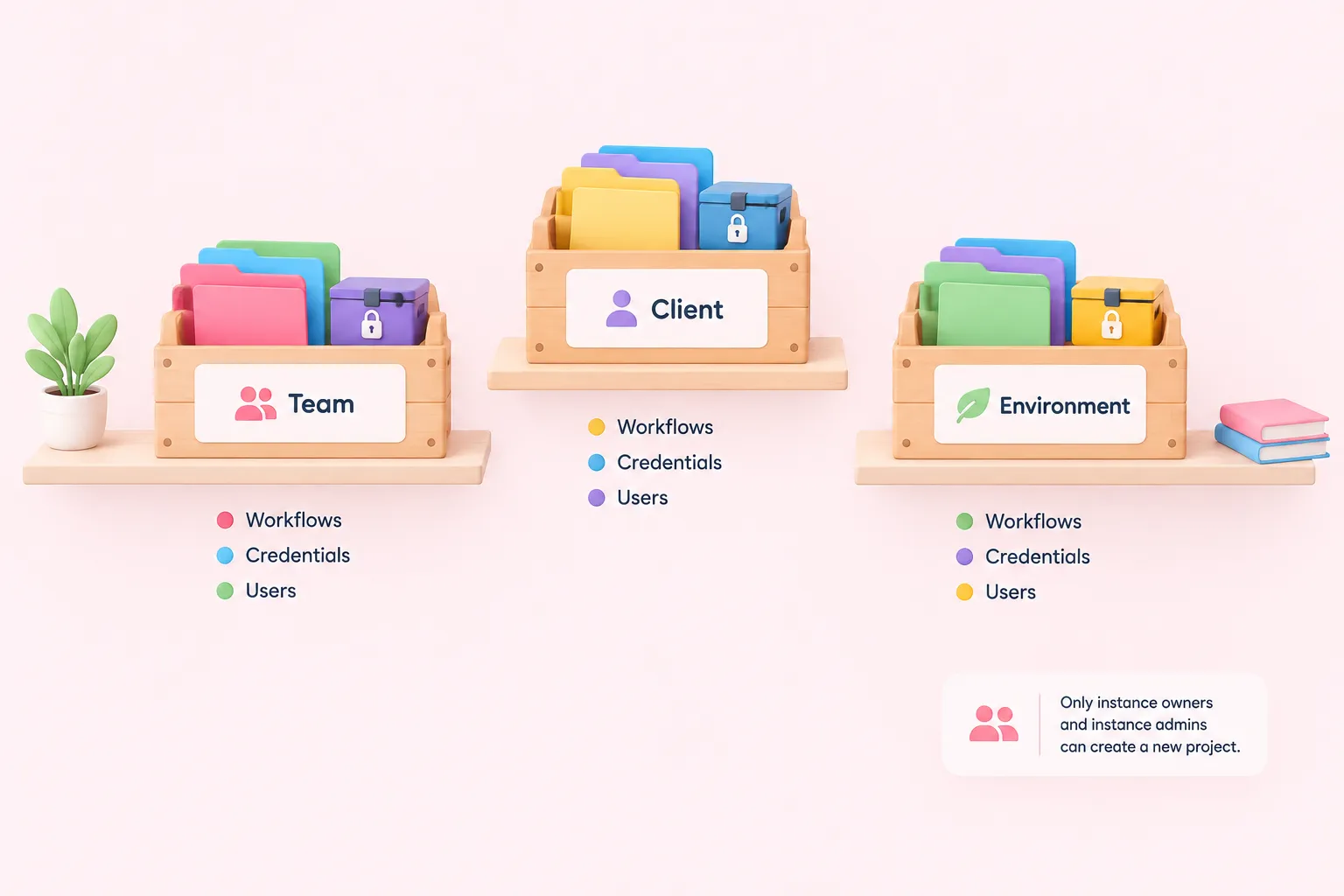
Roles answer who can do what inside a project; projects answer where that work lives. A project groups a set of workflows, credentials and users together, and only instance owners and instance admins can create a new project (F15).
Deciding on project boundaries before populating an instance matters more than it looks, because n8n ties sharing to the project a workflow or credential lives in, and moving that work later strips away its existing sharing (F15, F16). Grouping by team, by client, or by environment are all reasonable starting points; what matters is picking one before workflows and credentials accumulate outside any project.
Sources: Organize work in projects | Administer | n8n Docs
Organizing workflows and credentials into projects
Within a project, day-to-day membership is handled locally: adding or removing a member from a specific project is handled by that project's Project Admins (F17). That keeps membership changes close to the people who actually use the project, instead of funneling every small change through a single instance-wide admin.
Moving a workflow or credential into a different project, or to a different owning user, strips away all of its existing sharing (F16). Treat that as a one-way door: decide on a project structure before populating it with shared work, since reorganizing later means re-sharing everything from scratch.
For example, a team that later splits one ops project into two smaller ones would need to re-share every workflow and credential with the right people again inside the new projects, since none of the original sharing carries over (F16). Treating project boundaries as semi-permanent avoids that rework.
Sources: Organize work in projects | Administer | n8n Docs
Sharing workflows and credentials without oversharing
Only instance owners and users with the Admin instance role can view and share every workflow across the whole instance (F18); everyone else only sees what has been explicitly shared with them. Sharing a workflow doesn't automatically share what it depends on — if a workflow is shared without its underlying credentials, the recipient can't edit the nodes that use those credentials (F19).
Credentials created inside a project can only be shared by that project's Project Admins (F20), and once a credential is shared, the recipient connects their own underlying account rather than reusing the original owner's connection (F21). We think requiring each person to connect their own account, instead of reusing someone else's, is one of n8n's better defaults, because it keeps the blast radius of a leaked or revoked credential small.
- Share a workflow together with the credentials its nodes depend on, or recipients won't be able to edit those nodes
- Let project admins, not every member, decide who receives a shared credential
- Expect each recipient to connect their own underlying account rather than reuse yours
Sources: Share with others | Build | n8n Docs, Share credentials securely | Administer | n8n Docs
Planning ahead: custom roles, SSO and governance at scale
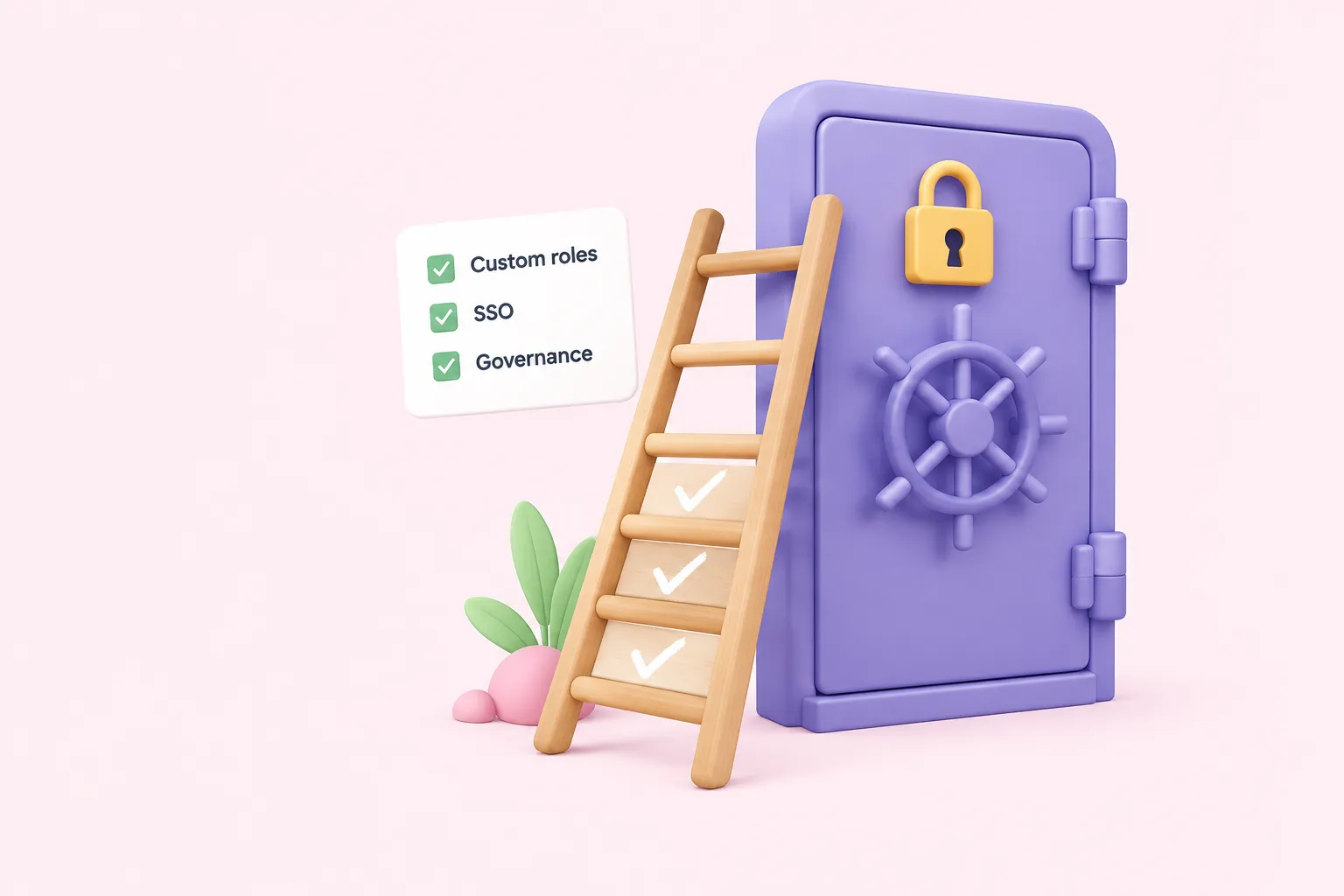
Everything above works within n8n's built-in roles. Teams that need finer control — say, a role that can edit workflows but never touch credentials — run into a wall: custom instance and project roles beyond the built-in set are restricted to n8n Cloud Enterprise and self-hosted Enterprise (F14). n8n's own custom-roles documentation frames this as deliberate: custom roles exist so an admin can grant only the narrow capabilities a person needs, instead of handing out full Admin access as a workaround (F13).
n8n's blog, posted in January 2026, describes Custom Project Roles as a way for admins to model operational roles — builders, reviewers, operators — with project-scoped, granular permissions (F22), and describes SSO-based user provisioning as syncing a person's permissions from an identity provider into n8n automatically as their role changes there (F23). Both are Enterprise-tier capabilities, described in n8n's own announcement rather than independently verified elsewhere.
Enterprise-only custom roles and SSO provisioning typically become relevant once headcount or compliance needs outgrow the built-in roles, rather than being required from day one. The built-in instance and project roles, combined with deliberate project structure and credential sharing, cover most of what a growing team needs until those requirements appear (F13, F14, F22, F23).
Sources: Custom roles | Administer | n8n Docs, Introducing Custom Project Roles and User Provisioning via SSO, built for Enterprise governance – n8n Blog