What Is Version Control for n8n Workflows, and How Do You Set It Up?
What is version control for n8n workflows? This guide covers workflow history, Git-based source control, and safe rollback setup.
Checked against the cited sources on .
What Is Version Control, and What Does It Mean for n8n Workflows?
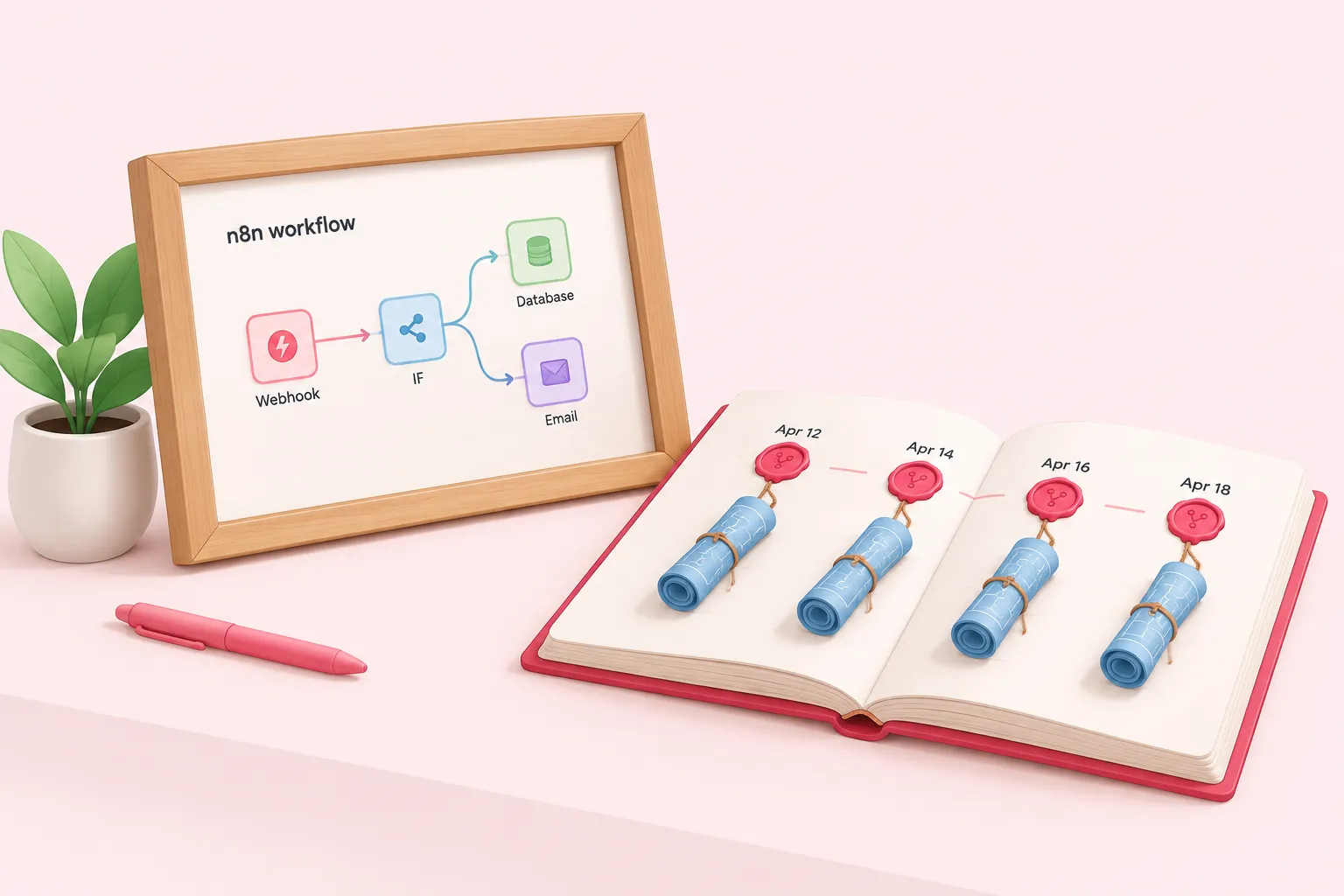
If you're asking what is version control for n8n workflows, the short version control definition is this: a system for tracking changes to your workflows over time, so a team can review changes, branch safely, and roll back when something breaks. That's the general idea behind version control in any software project, n8n included.
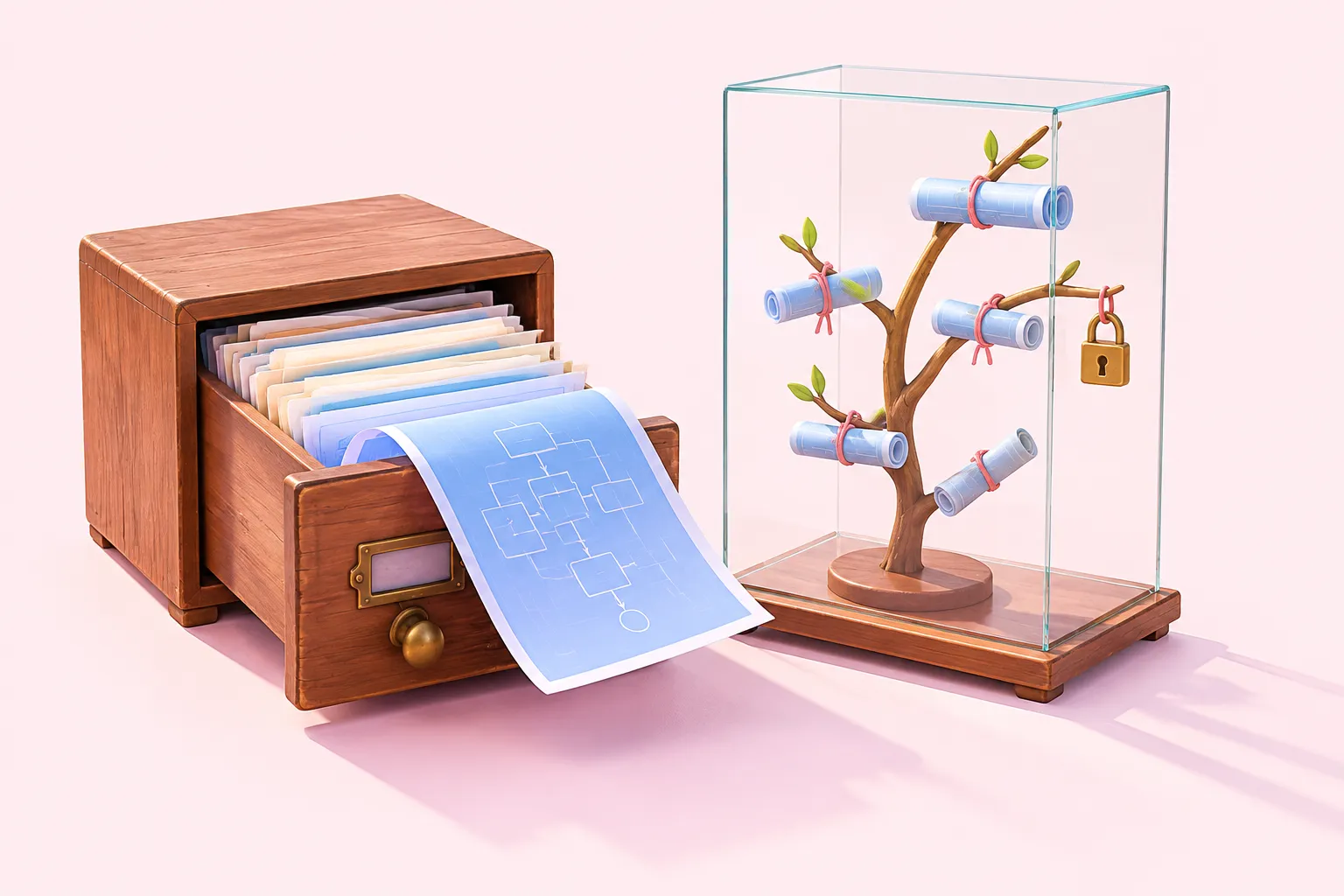
Answering what is version control for an n8n team in practice is less simple, because n8n actually gives you two different, only loosely connected answers depending on which feature you mean: workflow history, a per-instance log of saved versions kept inside n8n's own database, and Git-based source control, which connects an n8n instance to an external Git repository such as GitHub or GitLab. To answer what is a version control system in n8n's case, you need to know which of the two you're relying on for which job, since they solve different problems and sit behind different plans.
Because an n8n workflow is stored as a JSON definition, some practitioners treat it the same way they'd treat application source code, rather than as a disposable export. That framing matters once more than one person touches the same workflow, as one freelance data engineer put it when writing about moving n8n automations into a professional Git and CI/CD setup.
Sources: automatioFrom n8n Chaos to Professional Automation: Git, CI/CD, and Production Deployment | by Chairi Mohamed Amin | Medium, Use source control and environments | Administer | n8n Docs, Work with environments | Administer | n8n Docs, View change history | Build | n8n Docs
Workflow History vs. Git-Based Source Control
Workflow history is the simpler of the two. n8n keeps a record of saved versions inside the instance itself, and from that history panel you can restore or clone a prior version in one action. Full workflow history, though, is an Enterprise-tier feature on both n8n Cloud and self-hosted, so lower plans get only a limited window of recent versions rather than a complete archive.
Git-based source control works differently: it connects an n8n instance to a branch in an external Git repository, and it's only available on Business and Enterprise plans rather than being a general free-tier capability. Before you act on a change, n8n's workflow diffs let you compare your local version against what's currently sitting in the remote branch, which is the closest thing n8n gives you to a code review's diff view.
| Mechanism | What it tracks | Plan required | Typical use |
|---|---|---|---|
| Workflow history | Saved versions of one workflow inside a single n8n instance | Full history: Enterprise, on Cloud and self-hosted; limited history on lower plans | Quick restore or clone right after a mistake on one instance |
| Git-based source control | Workflow, credential-stub and variable definitions synced to an external Git branch | Business and Enterprise | Promoting changes between environments and keeping an external history |
Sources: View change history | Build | n8n Docs, Use source control and environments | Administer | n8n Docs
What n8n's Git Integration Does (and Doesn't) Cover
n8n's own documentation is direct about the boundaries here: it states plainly that you shouldn't view n8n's source control as full version control. That's a useful line to repeat to any stakeholder who hears 'Git integration' and assumes it behaves like GitHub end to end.
In our view, that gap is exactly where teams get burned: n8n's Git integration is closer to an environment-promotion pipeline than to a review tool, so it's safest to treat it as syncing state between instances rather than as the place code review happens. One concrete consequence is that n8n doesn't support a pull request-style review and merge process internally — that review has to happen in your Git provider, before you let a production instance pull from the branch it watches.
A few other gaps matter day to day. n8n can't automatically detect conflicts on workflows the way it can for some other resource types, so two people editing the same workflow on different branches won't get a warning; only process discipline prevents an overwrite. And because pulling changes into a workflow that's currently published briefly unpublishes and republishes it, a pull to a live production workflow can cause a short service interruption.
Sources: Use Git in n8n | Administer | n8n Docs, Push and pull changes | Administer | n8n Docs
Prerequisites: Plans, Roles, and Git Requirements
Before anyone touches the settings, confirm the basics. Source control is available on Business and Enterprise plans, not as a general capability of every tier. A vendor selling its own competing version-control add-on wrote in an October 2025 blog post that n8n's free and self-hosted tiers ship with no built-in version control, and pointed to Business/Enterprise pricing starting near €667 a month as the reason it's out of reach for many smaller teams — a framing worth reading with that vendor's commercial interest in mind, though it lines up with the plan gating n8n itself documents.
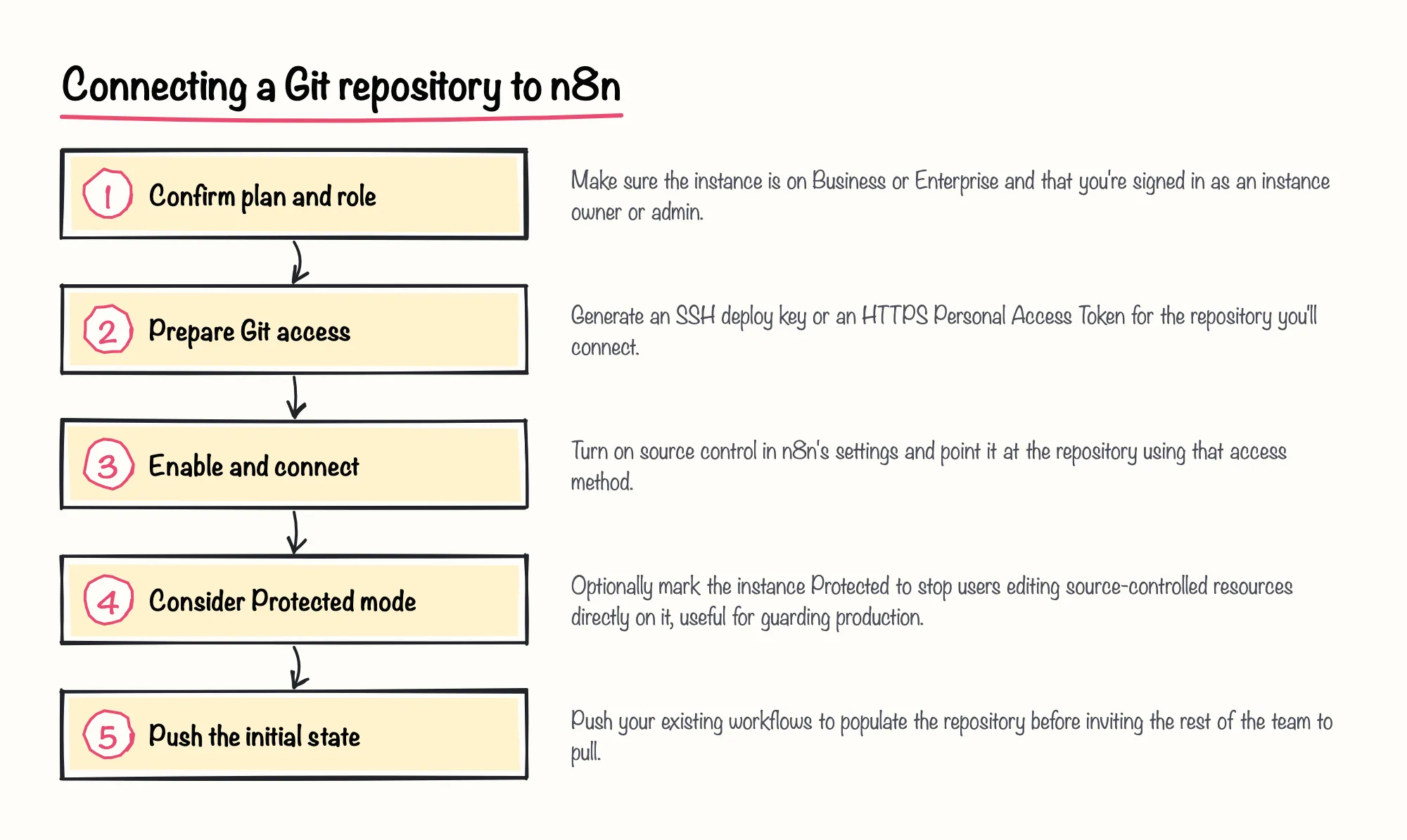
Roles matter too: only an instance owner or instance admin can enable and configure source control in the first place. And you'll need working Git access before you start — either SSH access using deploy keys, or HTTPS access with a Personal Access Token.
Sources: Use source control and environments | Administer | n8n Docs, Use n8n Smart: Version Control | Albert Sikkema - Building Production AI Systems, Set up source control | Administer | n8n Docs
Setting Up Source Control and Environments in n8n
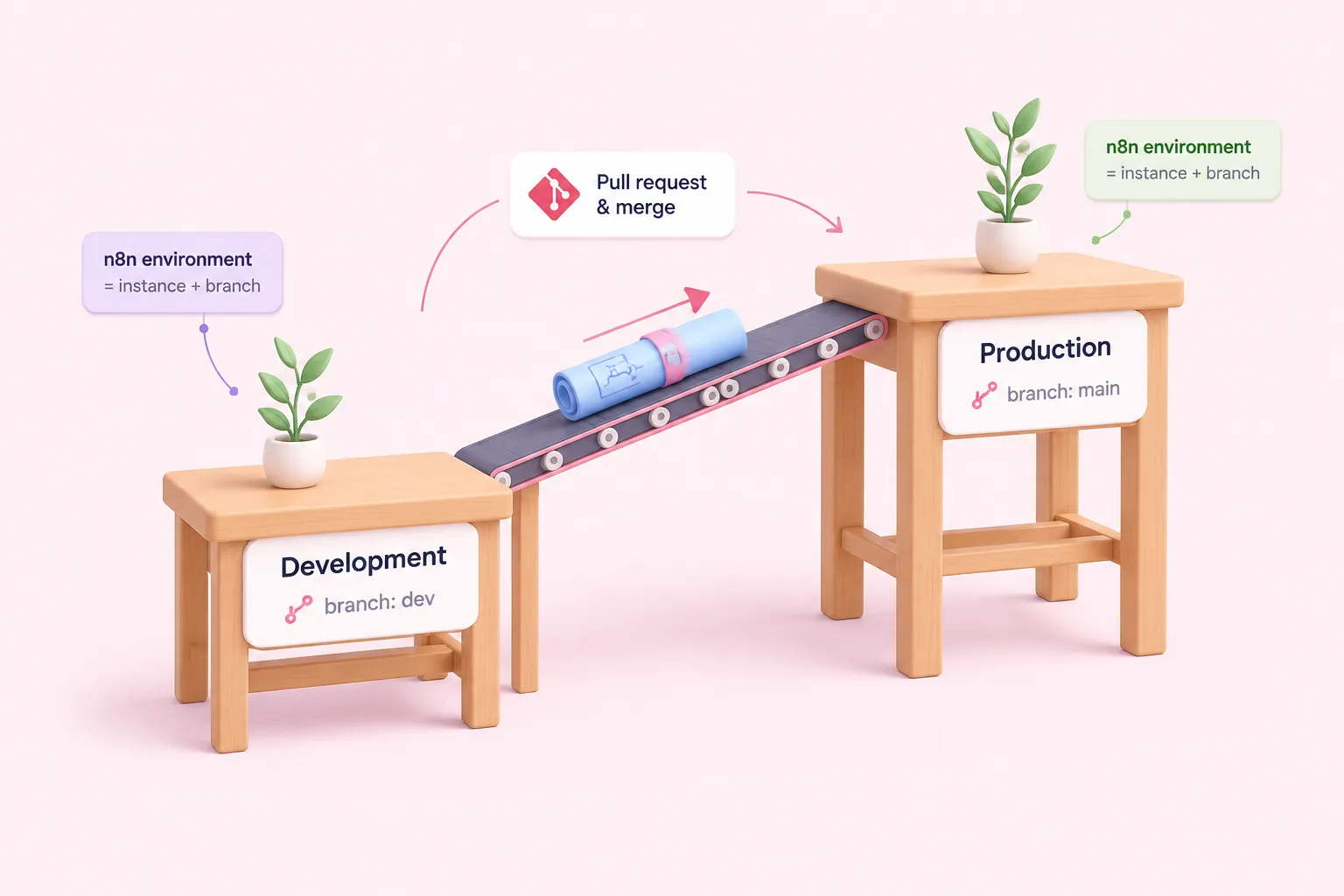
Once prerequisites are in place, the next concept to get straight is what n8n means by an 'environment.' It isn't just a workflow file — n8n defines an environment as the pairing of an n8n instance with a Git branch. That framing matters because moving a change from one environment to another isn't a copy inside n8n; it's a Git operation.
Specifically, moving work between environments that live on separate branches requires creating a pull request and merging it in your Git provider; n8n doesn't do that merge for you. n8n's own end-to-end tutorial demonstrates this with exactly two environments, development and production, as its reference pattern. Teams that want a staging environment or more branches will need to adapt that pattern themselves, since the official walkthrough only covers the two-environment case.
Sources: Work with environments | Administer | n8n Docs, Tutorial: Create environments with source control | Administer | n8n Docs
Connecting a Git Repository, Step by Step
The mechanics of connecting a repository follow a fairly short sequence, drawn from n8n's own setup steps. Here's that sequence as a starting checklist rather than a guaranteed script for every Git provider's quirks.
Sources: Use source control and environments | Administer | n8n Docs, Set up source control | Administer | n8n Docs
Choosing a Branching Pattern for Your Team
n8n's own tutorial recommends keeping work flowing in one direction between environments — either to Git, or from Git, but not both on the same branch — specifically to avoid the merge conflicts and overwrites that two-way flow invites. That's n8n's stated best practice, not something the system enforces for you.
We think this one-direction rule is the single highest-leverage habit a team can adopt here: it costs nothing to agree on, and it directly closes the overwrite risk the documentation itself calls out, long before you'd need any fancier process.
In practice that usually means a development instance only pushes to its branch, and a production instance only pulls from the branch it tracks, matching the two-environment pattern n8n's tutorial sets up by default. If your team needs a third environment, such as staging, you're extending that same one-direction logic rather than following a documented three-environment example.
Sources: Tutorial: Create environments with source control | Administer | n8n Docs
Reviewing, Pushing, Pulling, and Rolling Back Changes
With prerequisites and branching settled, day-to-day use comes down to three repeated actions: pushing a change out, pulling a change in, and occasionally rolling one back. Each behaves a little differently from what a general Git workflow trains you to expect, so it's worth walking through each on its own.
What Gets Committed and How Push/Pull Behaves
Push and pull permissions aren't symmetric for every role: project admins can push changes to the connected repository, but they can't pull changes from it, so a push-only role still needs someone else, or a higher role, to bring changes in. Plan your review flow around that asymmetry rather than assuming every admin can do both.
What actually gets committed is narrower than a full backup. Git only commits credential stub metadata — the ID, name and type of a credential — not the credential's actual secret values, so every environment still needs its real credentials re-entered by hand after a pull, except for expression-based fields, which do get synced. Data Tables are similarly partial: only the table schema is versioned, and the row data itself isn't synced at all.
- Workflow definitions and structure — synced
- Credential ID, name and type — synced as stubs; secret values are not
- Data Table schemas — synced; the row data inside them is not
Sources: Understand source control | Administer | n8n Docs, Push and pull changes | Administer | n8n Docs
Rolling Back Safely: Workflow History vs. Git as Source of Truth
For a fast, single-instance mistake — someone saved a bad change five minutes ago — workflow history's restore action is usually the right tool: you pick a prior saved version and replace the current workflow with it directly, without touching Git at all.
For anything that needs to survive across environments, or that you want recorded outside n8n's own database as an audit trail, Git is the better source of truth: reverting a branch and pulling that revert into the affected instance gives you a change you can point to later, even if it takes an extra step compared with a one-click restore.
Sources: View change history | Build | n8n Docs, Work with environments | Administer | n8n Docs, Push and pull changes | Administer | n8n Docs
Limitations and Alternatives for Teams Without Enterprise Access

Everything above assumes Business or Enterprise access. Teams below that line are, as already covered, working without native Git-based source control and without full workflow history, so the real question becomes what to do instead rather than whether to upgrade.
That gap isn't new. In a community feature request posted in May 2025, n8n users asked for a built-in workflow versioning system that would save a new version automatically on every change, which suggests the native history available at the time still didn't feel like an everyday safety net to everyone asking. The same May 2025 thread included a report from a user who said there was no easy way to restore a prior workflow version after a mistake.
The underlying problem goes back further still. In an October 2021 community forum response — now four years out of date, since n8n has since shipped both workflow history and Git-based source control — n8n staff confirmed there was no built-in workflow versioning at all then. Some community members worked around that gap at the time by running a scheduled workflow every 30 minutes that backed up workflow definitions into a separate Git repository.
Our practical recommendation for a team stuck below Enterprise echoes that old workaround more than it contradicts it: a small scheduled workflow that exports and commits your JSON definitions to a plain Git repository won't give you diffs, roles or protected instances, but it beats finding out too late that a bad save overwrote the only copy you had.
Sources: Workflow Versioning and Rollback - Feature Requests - n8n Community, Version history of a workflow - Questions - n8n Community
Conclusion: Building a Version-Control Practice for n8n Teams
What is version control, in the end, for an n8n team? It's workflow history for fast local rollbacks, Git-based source control for moving changes between environments, and a layer of team habits n8n doesn't enforce for you, like one-direction branch flow and review before merge. Treat all three as parts of the same practice, not substitutes for each other.
Start by matching your plan and roles to what you actually need, agree on a branching pattern before your first real incident, and write down what Git does and doesn't sync so nobody assumes a pull restores secrets it never carried. Pair that with a shared review step before merge and a common error-handling standard, and you've covered most of what a production-ready n8n workflow practice actually needs.