

n8n vs Power Automate for Microsoft 365 Teams
An n8n vs Power Automate comparison for Microsoft 365 teams, based on official docs: M365 connections, admin consent, unattended runs, known limits and licensing models.

Checked against the cited sources on .
The criteria for this n8n vs Power Automate comparison
If your team already works in Microsoft 365, the n8n vs Power Automate question comes down to three things: how each tool connects to Outlook, Teams and SharePoint, how it runs automations when nobody is signed in, and how you pay for it. This comparison covers each of those using only the vendors' official documentation.
One caveat up front: this n8n Power Automate comparison is based on documentation, not the result of hands-on testing. Several of the sources were only partly available. No Power Automate prices were available, the rights bundled into Microsoft 365 seeded licenses aren't covered, and the Power Automate SharePoint and OneDrive connectors aren't included, so the Microsoft side relies on the Teams and Outlook connectors.
Connecting to Microsoft 365 and admin consent
On the n8n side, one set of Microsoft credentials authenticates built-in nodes for Outlook, Teams, SharePoint, OneDrive, Excel, To Do and more. The n8n docs note that when a corporate Entra account manages the user, an administrator may need to approve the sign-in before the credential can be issued, so plan for an administrator to be involved when accounts are managed by Entra.
Power Automate classes its Teams connector as Standard. So on the n8n vs Power Automate question of setup, n8n may need an admin step before a credential is issued, while Power Automate's admin requirements depend on which Teams actions you use, as the limits section below shows.
Sources: Microsoft credentials | Nodes | n8n Docs, Microsoft Teams - Connectors | Microsoft Learn
Unattended and shared workflows
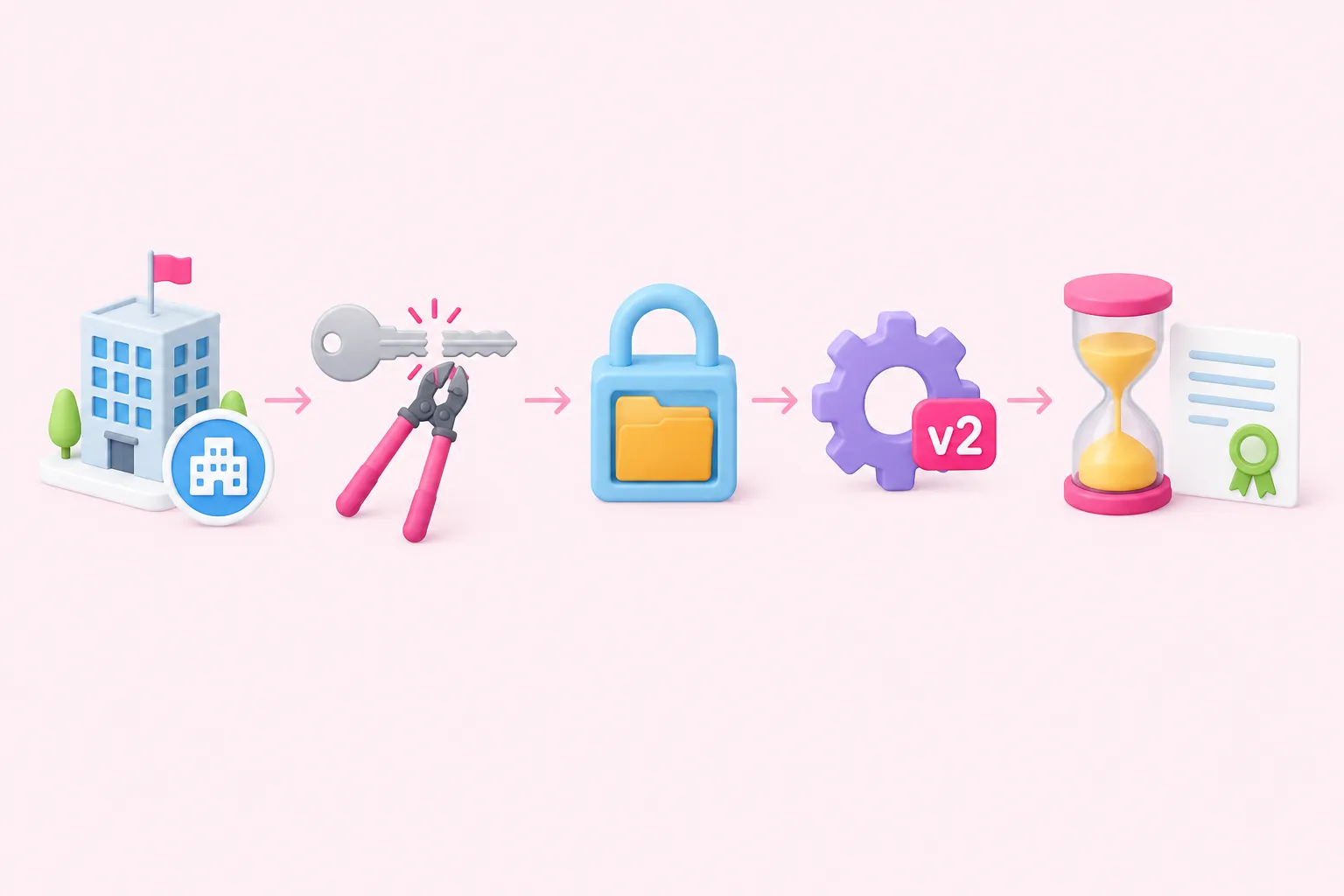
This is where the two tools differ most. n8n offers a Microsoft Entra Service Principal credential that gives app-only access to Microsoft Graph. It's meant for unattended and shared workflows because it doesn't rely on a user session. It needs a Microsoft 365 organization tenant and an admin who can grant consent. The Teams, Outlook, SharePoint and Excel (OneDrive) nodes support it from node version 2.
There's a catch. Application permissions apply to the whole tenant unless you narrow them, and n8n recommends Exchange application access policies or Sites.Selected to do that. The SharePoint node documentation (version 2, the default from n8n 2.37.0) explains the tradeoff. An OAuth2 credential stops working when the user's session is revoked. A service principal stops working when its secret or certificate expires.
For unattended desktop flows, or flows licensed without user licenses, Microsoft points to the Process capacity license. The diagram below is an editorial summary of the documented n8n setup steps.
Setting up an unattended n8n workflow on Microsoft 365
- Confirm prerequisites: Make sure the tenant and consent prerequisites above are in place first.
- Create service principal: Set up the Entra Service Principal credential for app-only Graph access.
- Narrow scope: Restrict access with Sites.Selected or Exchange application access policies.
- Use v2 nodes: Build with version 2 of the Teams, Outlook, SharePoint or Excel nodes.
- Track expiry: Plan to renew the secret or certificate before it expires.
Sources: Microsoft Entra Service Principal credentials | Nodes | n8n Docs, Microsoft SharePoint | Nodes | n8n Docs, Types of Power Automate licenses - Power Platform | Microsoft Learn
Known limits on each side
Neither tool does everything. When n8n's Teams node (version 2) uses the service principal, chat messages, chat members and online meetings aren't available, and it can't create or reply to channel messages. OAuth2 credentials do support those operations. n8n's SharePoint node doesn't support uploads over 250 MB. n8n's Teams node can also send a message and pause the workflow until someone approves or responds.
On the Power Automate side, Microsoft documents that some Teams actions need the Workflows app allowed in the Teams admin center, some Teams triggers poll every three or five minutes, Teams connections can't be shared, and the Office 365 Outlook connector doesn't support Service Principal authentication.
Sources: Microsoft Teams | Nodes | n8n Docs, Microsoft SharePoint | Nodes | n8n Docs, Microsoft Teams - Connectors | Microsoft Learn, Office 365 Outlook - Connectors | Microsoft Learn
Licensing models side by side
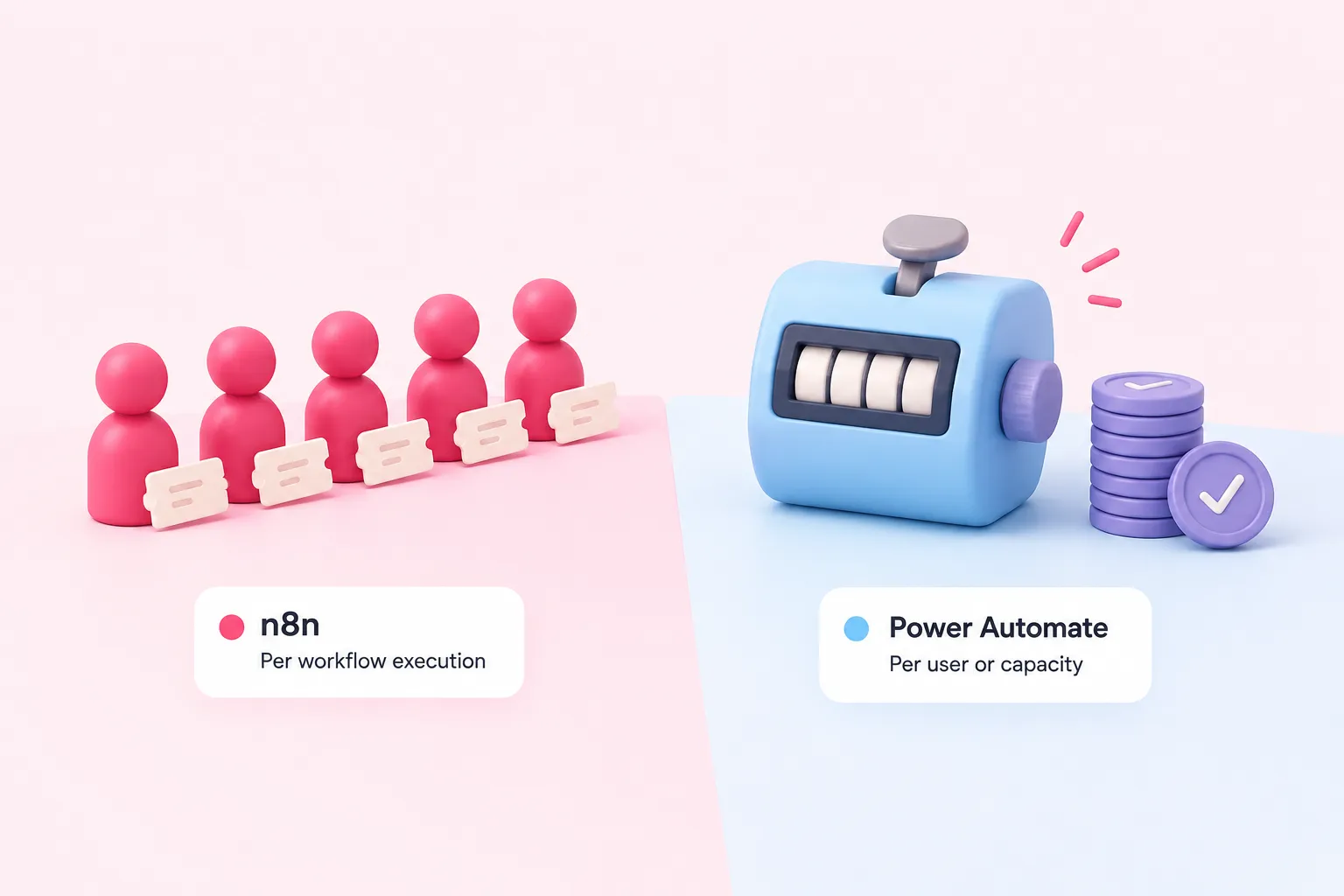
The two pricing models count different things. According to Microsoft Learn, Power Automate Free for work or school accounts allows cloud flows with no sharing and standard connectors only. Premium is licensed per user and lists 40k daily actions per user, while Process is a capacity license that lists 250k. Microsoft also mentions higher limits during a transition period. n8n charges per workflow execution rather than per user or per step. Its pricing page lists Business at 667€ a month, billed annually, for 40K executions. Enterprise pricing requires contacting sales.
If you self-host, n8n's Community edition is free, but it leaves out SSO, environments, projects, sharing of workflows and credentials, and Git version control. n8n says its pricing page is the source of truth and that features can change. The table below compares n8n vs Microsoft Power Automate on the same criteria.
| Criterion | n8n | Power Automate |
|---|---|---|
| Billing unit | Workflow executions | Per user (Premium) or capacity (Process) |
| Free option | Community self-hosted, no sharing or SSO | Free: no sharing, standard connectors only |
| App-only M365 access | Entra service principal, node v2 | Outlook connector: not supported; other connectors Unknown |
| Teams chat without a user | Not available with app-only access | Unknown |
| Admin steps | Consent for Entra and the service principal | Workflows app allowed in the Teams admin center |
| Published price | Business 667€/mo billed annually | Not in the supplied sources |
Sources: Types of Power Automate licenses - Power Platform | Microsoft Learn, Compare editions | Deploy | n8n Docs, n8n Plans and Pricing - n8n.io, Microsoft Entra Service Principal credentials | Nodes | n8n Docs, Office 365 Outlook - Connectors | Microsoft Learn, Microsoft Teams | Nodes | n8n Docs, Microsoft Teams - Connectors | Microsoft Learn
Which tool fits which Microsoft 365 team
These are editorial suggestions, not tested verdicts. Power Automate is likely the easier start when a team mainly builds personal or departmental flows on standard connectors and already holds Microsoft licenses. n8n fits better when a team needs shared, unattended Microsoft 365 automations that don't depend on a signed-in user, as long as permissions are scoped carefully. To collaborate in self-hosted n8n, plan for a paid plan.
For most teams, n8n vs Power Automate is less about which tool is better and more about which fits your workflows. When weighing Microsoft Power Automate vs n8n, the suggested checks below can help. Treat them as a starting point, not a validated instrument.
Sources: Microsoft Entra Service Principal credentials | Nodes | n8n Docs, Types of Power Automate licenses - Power Platform | Microsoft Learn, Compare editions | Deploy | n8n Docs, n8n Plans and Pricing - n8n.io