

n8n MCP Integration: A Hands-On Tutorial
A step-by-step n8n MCP integration tutorial covering the MCP Server Trigger node, prerequisites, troubleshooting, and what changes when a whole team relies on it.

Checked against the cited sources on .
Two Directions of n8n MCP Integration: Server or Client
An n8n MCP integration can run in two directions, and mixing them up is the most common source of confusion when you first try to connect an AI assistant to n8n. In one direction, n8n acts as the MCP server: a workflow exposes its own tools so an external AI assistant can call them. In the other direction, n8n acts as the MCP client: an AI Agent inside n8n calls tools exposed by someone else's MCP server.
The server direction relies on the MCP Server Trigger node, which turns a workflow into an MCP server so that outside AI assistants can call the tools it exposes. Unlike a normal trigger that hands control to the next node in a line, this trigger only connects to and executes the tool nodes attached to it, so every capability you want the assistant to reach has to be wired in explicitly.
The client direction uses the MCP Client Tool node, which lets an AI Agent built inside n8n use tools exposed by an external MCP server, the reverse of the setup above. This tutorial focuses on the server direction, since that is what lets an outside assistant like Claude or another chatbot see and act on an n8n workflow.
Sources: MCP Server Trigger | Nodes | n8n Docs, MCP Client Tool | Nodes | n8n Docs
Prerequisites
Before wiring anything up, check that your setup meets a few requirements documented by n8n itself. Getting these wrong is the most common reason a connection attempt stalls before it starts.
Sources: MCP Server Trigger | Nodes | n8n Docs
Goal and Step-by-Step: Exposing a Workflow via MCP Server Trigger
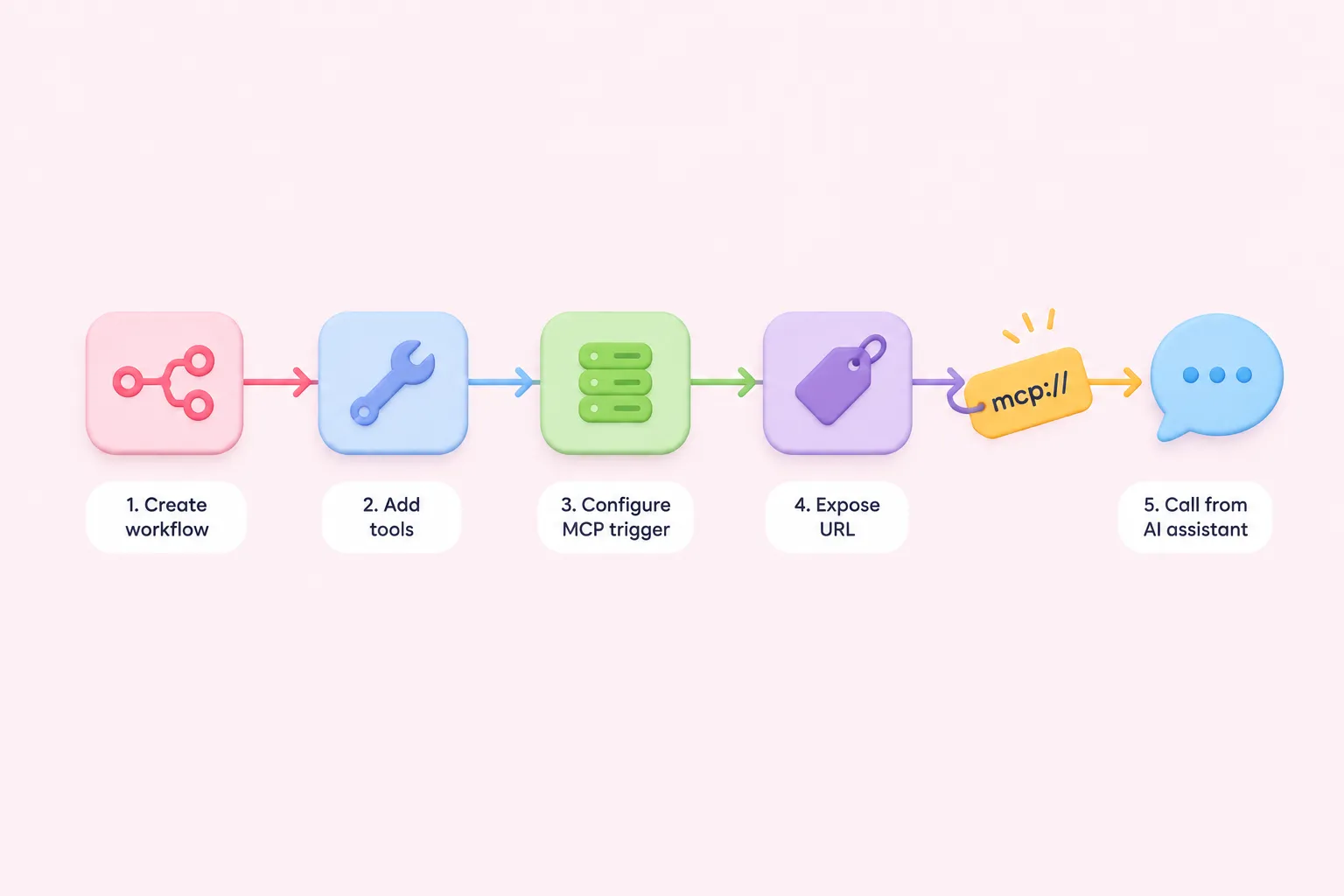
The goal for this tutorial is narrow and concrete: expose one n8n workflow to an AI assistant so the assistant can call it as a tool, using the MCP Server Trigger node. The steps below follow the shape of an n8n MCP integration as n8n's own documentation describes it.
Exposing a workflow through MCP Server Trigger
- Add the trigger: Place an MCP Server Trigger node in the workflow you want to expose.
- Connect tool nodes: Wire the specific tool nodes to the trigger, since it only executes nodes connected to it rather than a linear next step.
- Set authentication: Configure the credentials the trigger's endpoint will require before accepting calls.
- Copy the production URL: Take the endpoint address the trigger exposes once the workflow is active.
- Configure the client: Point the AI assistant's MCP client settings at that URL over streamable HTTP or SSE, not stdio.
- Test a tool call: Ask the assistant to call one exposed tool and confirm the workflow runs.
Sources: MCP Server Trigger | Nodes | n8n Docs
Expected Result and Troubleshooting
Once configured, calling a tool from the assistant should trigger the connected workflow, run only the tool nodes wired to the MCP Server Trigger, and return their output back to the assistant as a tool response. If a call arrives but nothing happens, the tool node in question is probably not actually connected to the trigger.
Most early problems trace back to transport or wiring, not authentication. n8n MCP support for this trigger only covers streamable HTTP and SSE, so a client library defaulting to stdio will fail to connect no matter how the credentials are set.
- Client can't connect at all: confirm it is using streamable HTTP or SSE, since stdio is not supported
- Tool call succeeds but returns nothing: check the tool node is actually connected to the MCP Server Trigger
- Assistant can't see a tool you expect: remember only connected tool nodes execute, unlike a linear trigger
- Connection drops mid-call: recheck the endpoint URL and authentication configured on the trigger
Sources: MCP Server Trigger | Nodes | n8n Docs
What Changes When a Team Shares MCP Access Instead of One Person's Chatbot
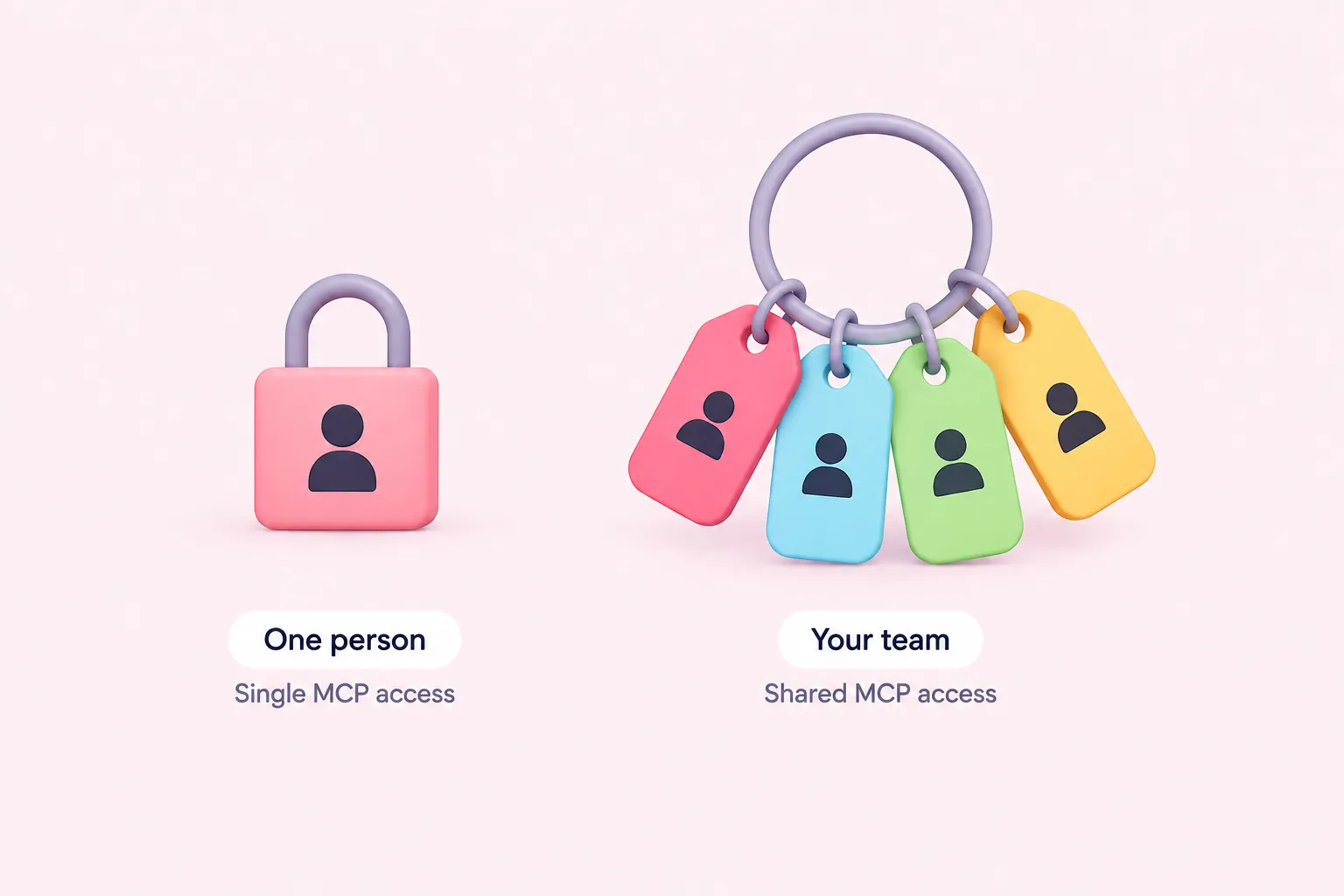
A single MCP Server Trigger exposes the tools of one workflow. Connecting to n8n's MCP server this way is different from enabling instance-level MCP access, where a whole instance's enabled workflows become reachable to any connected client at once.
With instance-level access, every connected client can see every workflow enabled for MCP; there is no way to restrict specific workflows to specific clients. An admin can review and revoke an individual client's access without turning MCP off for everyone, which matters once more than one person is calling the same instance.
Sharing a credential for team use shares the credential record, not a live session: each teammate still connects using their own account rather than borrowing someone else's. That kind of team credential sharing is available on every n8n Cloud plan, but only on Business or Enterprise self-hosted plans.
Visibility into who did what also changes with scale. Streaming logs and audit events to an external monitoring tool is an Enterprise feature on both Cloud and self-hosted n8n, and dedicated MCP audit events, including a record of which client called which tool, only exist from n8n version 2.34.0 onward.
| Dimension | Single MCP Server Trigger | Instance-level MCP access |
|---|---|---|
| Scope | One workflow's connected tools | Every workflow enabled for MCP on the instance |
| Client restriction | Limited to what that trigger exposes | No per-client restriction across enabled workflows |
| Revocation | Not documented | Admin can revoke an individual client's access |
| Audit detail | Not documented for the trigger alone | MCP tool-call events from n8n 2.34.0 with Enterprise log streaming |
Sources: Connect to n8n MCP server | Connect | n8n Docs, Share credentials securely | Administer | n8n Docs, Stream logs to external systems | Administer | n8n Docs
A Third-Party Alternative: n8n-mcp
Outside n8n's own product, some developers report using a separate, community-maintained project called n8n-mcp, which its creator describes as a bridge giving AI assistants documentation-level access to n8n's nodes, distinct from n8n's own MCP Server Trigger and MCP Client Tool nodes.
The project's own documentation carries a pointed safety warning: never let an AI assistant edit production workflows directly through it. That caution matters for any n8n MCP integration built with third-party tooling, official or not.
The creator has also shared a self-reported before-and-after example of workflow-building speed on the n8n community forum, describing a large personal productivity gain. That figure comes from one developer's own account of a single case, not an independently measured comparison, so it should be read as a personal report rather than a documented result.
That description comes from the same n8n community forum post where the creator introduced the project, alongside the setup instructions for connecting it to Claude Desktop.
Sources: GitHub - czlonkowski/n8n-mcp: A MCP for Claude Desktop / Claude Code / Windsurf / Cursor to build n8n workflows for you · GitHub, 🚀 I Built an MCP Server That Makes Claude an n8n Expert - Here's How It Changed Everything - Tips & Tricks - n8n Community
Editorial Recommendations
These are suggestions to weigh against your own setup, not a validated checklist or guaranteed procedure.
Sources: Connect to n8n MCP server | Connect | n8n Docs, Stream logs to external systems | Administer | n8n Docs, GitHub - czlonkowski/n8n-mcp: A MCP for Claude Desktop / Claude Code / Windsurf / Cursor to build n8n workflows for you · GitHub