

n8n MCP server tutorial: connect an AI client to your workflows safely
A practical n8n MCP server tutorial: expose workflows to an AI client with the MCP Server Trigger node or instance-level MCP, then secure it on a company instance.

Checked against the n8n documentation on .
Goal and prerequisites for an n8n MCP server
In this tutorial you'll set up an n8n MCP server so an AI client can find and run your workflows as tools, and you'll keep it safe on a shared company instance. The steps are based on n8n's own documentation, retrieved on 2026-09-16. We didn't test them ourselves, and menus change between versions, so compare each step with your own n8n version.
n8n gives you two ways to do this. Option A uses the MCP Server Trigger node: one workflow becomes its own MCP server, and the client sees only the tools built inside that workflow. Option B is instance-level MCP, which exposes existing workflows from the whole instance. Our suggestion, which is editorial advice rather than an official rule: start practicing with Option A, because a single workflow keeps the scope small.
Before you start, you need an n8n instance your AI client can reach. For Option B you also need the instance owner or admin role, because only those roles can turn the feature on. This guide doesn't cover the n8n MCP client node, which works in the opposite direction and lets n8n call outside MCP servers. Here, n8n is always the server.
Option A: build a workflow with the n8n MCP Server Trigger
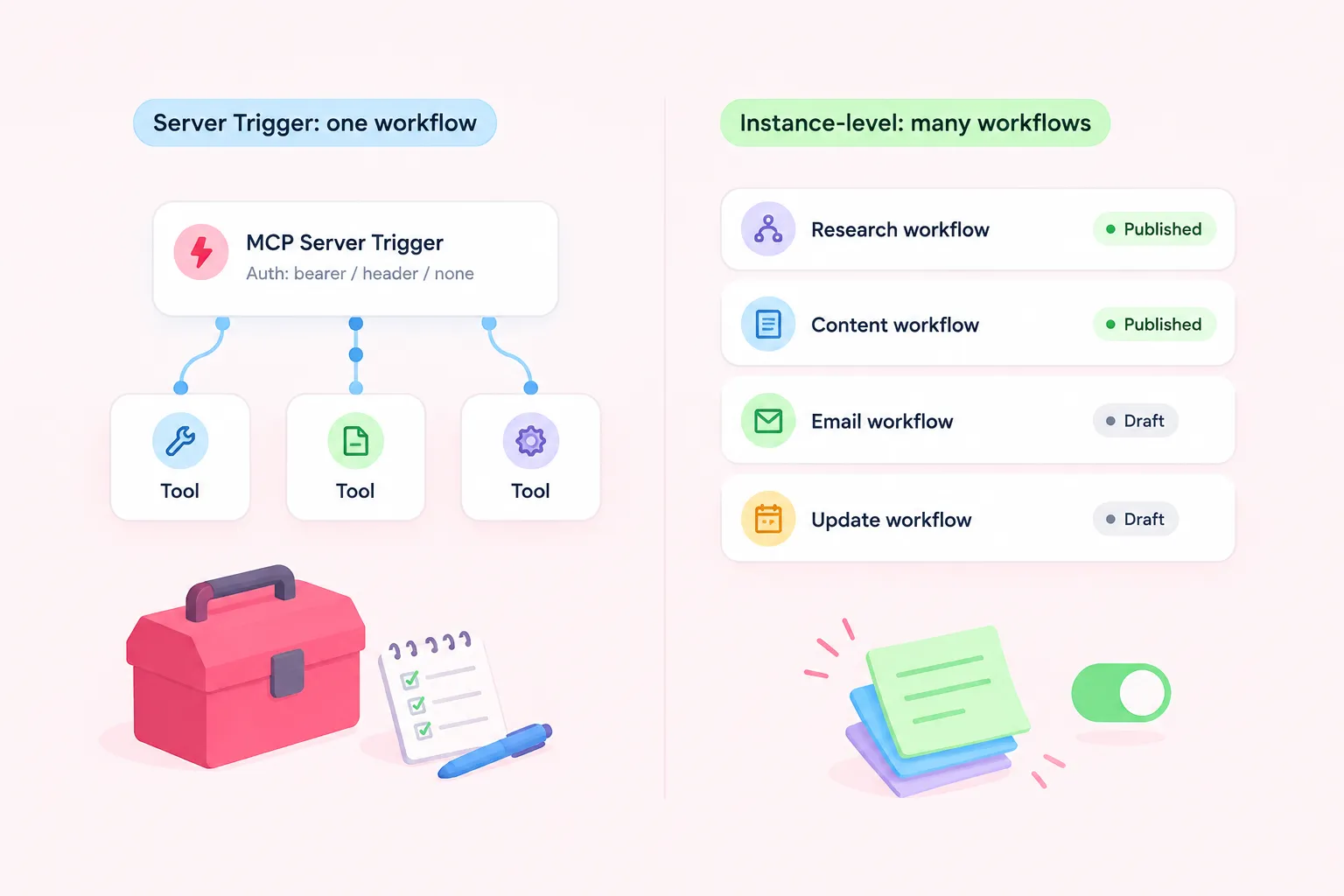
Create a new workflow and add the MCP Server Trigger node. It only connects to tool nodes, so attach the tools you want the client to use. To offer a separate workflow as a tool, attach it with the Custom n8n Workflow Tool node. This tutorial doesn't cover that node's settings, so follow n8n's Custom n8n Workflow Tool node documentation.
Next, pick an authentication method on the trigger. The options are bearer auth, header auth or None. The documentation doesn't recommend one. Our advice is to avoid None on anything other than a throwaway local sandbox.
The trigger has two URLs. Use the test URL while you build. The production URL only starts working after you publish the workflow. Production calls don't show their data in the editor, so check them in the Executions tab.
Option B: turn on instance-level n8n MCP
To use the instance-level n8n MCP server, sign in as an owner or admin, open Settings, then Instance-level MCP, and enable MCP access. The documentation says this settings layout exists from n8n 2.33.0. Older versions show a simpler screen.
Next, choose which workflows to expose. Only published workflows that include a webhook, form, schedule or chat trigger qualify. You can turn them on one at a time, or by project or folder if you're on n8n 2.24.0 or later. As an editorial suggestion, expose only the workflows a specific client actually needs.
Sources: S2
Connect your AI client with OAuth or a token
For Option A, your client calls the trigger URL and sends the bearer token or header you configured. For Option B, clients can connect with OAuth, which n8n recommends, or with an API key. As our own advice rather than anything n8n documents, keep the set of workflows you expose to MCP small, limited to the ones a client actually needs.
We don't reproduce setup snippets for specific clients here. Setup differs from client to client, so follow n8n's MCP client connection examples page for your tool.
Expected results: what the client can see and run
With Option A, the client should list only the tools attached to your trigger workflow. With Option B, it should be able to run the workflows you enabled.
One detail needs attention. With instance-level MCP, the search_workflows tool can list every workflow the connected user can access, including workflows not marked as available in MCP. It returns previews only. Running or editing a workflow still requires MCP access to be enabled for that workflow. Even so, as an editorial caution, previews can reveal that workflows exist, which you might not want a client to see.
Safety checklist for a company instance
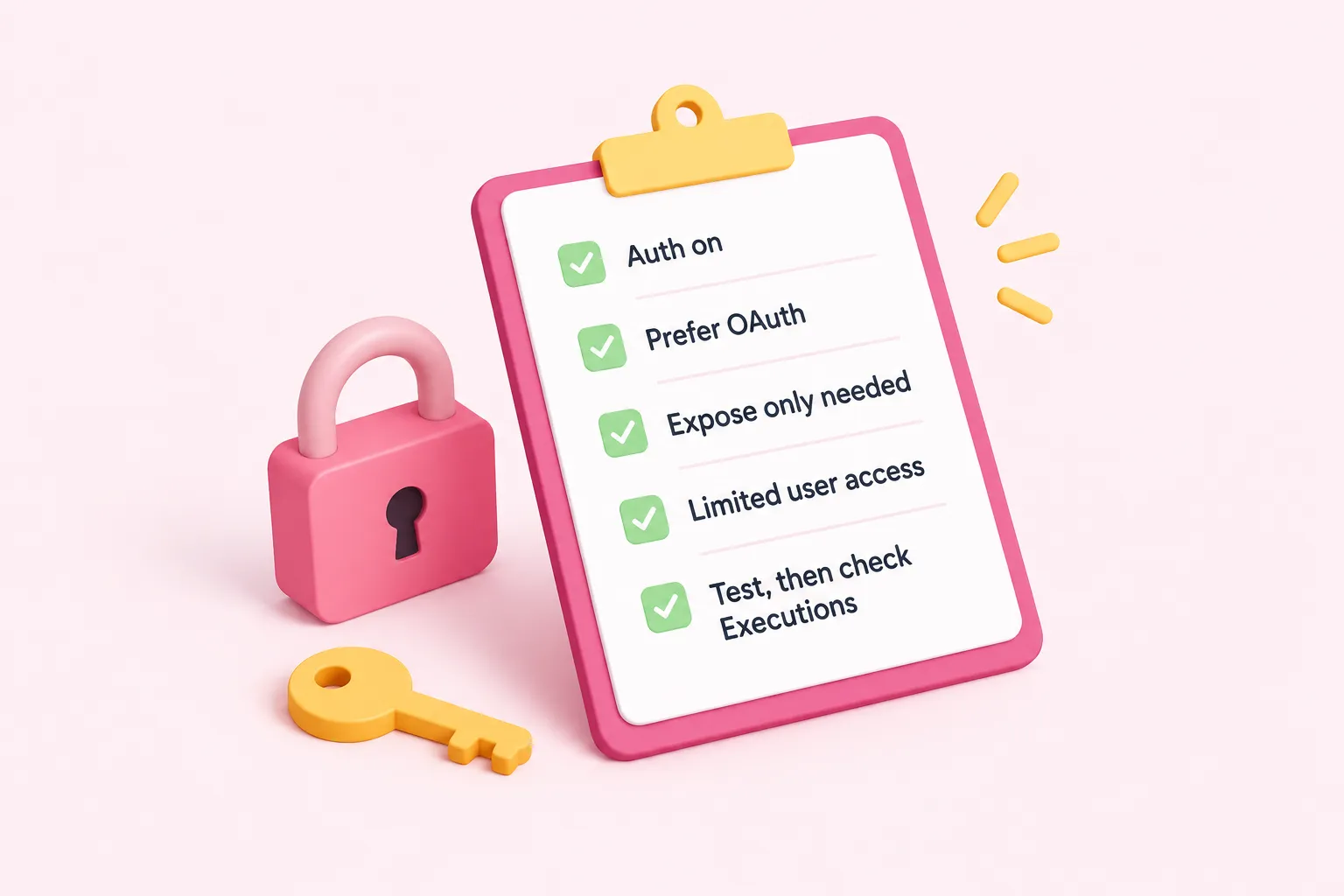
Suggested checks for any n8n MCP server on a company instance, offered as editorial advice rather than an official checklist: turn on authentication for every MCP Server Trigger. Prefer OAuth for instance-level MCP. Enable only the workflows a client needs. Connect MCP clients through user accounts with limited access, because search_workflows shows whatever that user can reach. Test on the test URL before you publish, then review production runs in the Executions tab.
This tutorial doesn't cover rotating tokens, revoking client access, restricting OAuth callback URLs or turning MCP off completely. n8n's documentation covers these, so read it before you roll this out to a team.
Troubleshooting: reverse proxies, buffering and access
You may run into connection problems when n8n runs behind a reverse proxy such as nginx. If that happens, turn off proxy buffering for the MCP endpoint. The same documentation page also covers compression, chunked encoding, connection headers and queue mode with multiple webhook replicas. Read it if your setup uses any of these.
If a workflow is missing in Option B, check that it's published, that it has a supported trigger, and that MCP access is enabled for it. If the Settings screen looks different from these steps, check your n8n version. If a production call seems to do nothing, look in the Executions tab rather than the editor.