
n8n Code Node JavaScript: Debugging Tutorial
A tutorial on n8n code node JavaScript: execution modes, item data access, async code, console.log debugging, and production item-linking pitfalls.

Checked against the cited sources on .
Getting Started with n8n Code Node JavaScript
A well-built script in the n8n Code node JavaScript environment can replace several ordinary nodes with a few lines of logic, but small mistakes in how items are counted or returned can be easy to miss until the workflow runs against real data. This tutorial covers setting up a Code node, choosing the right execution mode, reading item data safely, handling asynchronous code, and debugging with console.log — then what changes once that same script has to run against production API data.
To follow along you need an existing n8n workflow with at least one node producing sample output, plus a Code node placed after it and set to run in JavaScript rather than Python mode. This tutorial assumes basic familiarity with adding nodes to the canvas and treats that as ordinary navigation rather than a debugging step. The goal below is a small script that reads incoming item data, transforms it, and logs its own progress — first against one sample item, then against a realistic multi-item response.
Choose an Execution Mode and Access Item Data
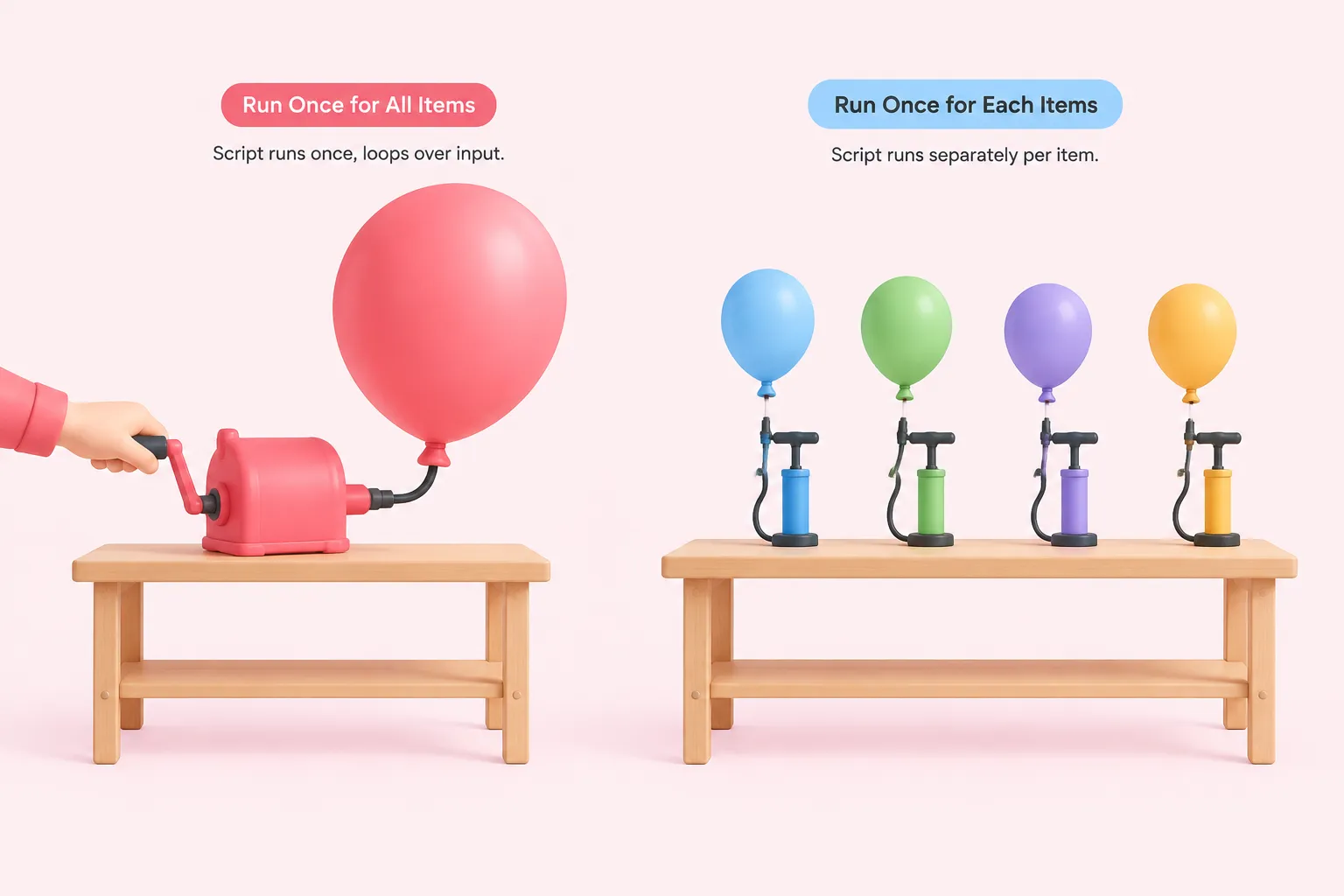
The Code node offers two execution modes. Run Once for All Items is the default: the script runs a single time regardless of how many items arrive, so it must loop over the input itself. Run Once for Each Item instead runs the script separately per item, which is easier to reason about while a script is still small.
- Choose an execution mode: Run Once for All Items or Run Once for Each Item.
- Access item data with $json, $input.item, $input.all(), or a reference to an earlier node.
- Handle synchronous or asynchronous code, returning a Promise when needed.
- Debug with console.log while the script is still small.
Inside the script, $json is shorthand for the current input item's JSON data, and $input.item returns that same current item explicitly. $input.all() returns every input item as an array, which is what a script in Run Once for All Items mode loops over. When a script needs a field from an earlier node rather than its immediate input, $('Node Name').item.json pulls that linked item's data directly.
| Shortcut | Returns | Typical use |
|---|---|---|
| $json | Current input item's JSON | Quick reads inside Run Once for Each Item |
| $input.item | The item currently being processed | Explicit equivalent of $json |
| $input.all() | Array of every input item | Looping in Run Once for All Items |
| $('Node Name').item.json | Linked item's JSON from an earlier node | Pulling a field not present on the current item |
Sources: Using the Code node | Build | n8n Docs, Reference previous nodes | Build | n8n Docs, Nodeinputdata | Build | n8n Docs
Handle Asynchronous Code and Debug with console.log
Most short transformation scripts are synchronous, but the Code node also supports async JavaScript: instead of returning items directly, a script can return a Promise that n8n waits on and resolves before passing data downstream. This matters once n8n Code node JavaScript needs to wait on an operation rather than compute a result immediately.
For debugging, n8n's own documentation names console.log as a supported way to write to the console from inside the Code node, useful for checking a value or confirming a transformation step ran. Anthony Sidashin, a developer who wrote about using n8n from a developer's perspective, described this behavior from his own hands-on experience with the Code node.
Sources: Using the Code node | Build | n8n Docs, My experience using n8n, from a developer perspective
Expected Results and Troubleshooting Common Code Node Errors
After running the node against a sample item, the output pane should show one or more items, each carrying a json key, matching how n8n passes data between nodes as an array of json-wrapped objects. If the script's return value doesn't match that shape — or returns nothing — the node raises a 'doesn't return items properly' error rather than silently passing bad data forward.
A few other errors show up repeatedly once a script grows beyond a single test item, summarized below.
| Error | Likely cause | Fix |
|---|---|---|
| "Doesn't return items properly" | Return value isn't an array of json-wrapped objects | Return an array where each item has a json key |
| "Cannot find module" | Script imports an external npm package unavailable on that instance | Install and allow-list the module on self-hosted n8n, or avoid external imports on n8n Cloud |
| Code node can't read a credential | Code nodes cannot access stored credentials by design | Fetch authenticated data with an HTTP Request node and pass only its JSON into the Code node |
Sources: Common issues | Nodes | n8n Docs, Using the Code node | Build | n8n Docs
From Test Data to Real Production API Data

Running n8n Code node JavaScript against real production API data changes an assumption that held fine for one sample item: n8n only handles item linking automatically when there is a single incoming item. Once a script processes a multi-item API response, or creates new items instead of passing the same ones through, that automatic linking no longer covers the result, and later nodes can lose track of which output came from which input.
The fix is to set pairedItem explicitly on each item the script returns, so downstream nodes can still trace a result back to its source. The credential and module limits covered above matter even more here, since production scripts are exactly where a team reaches for an external package or forgets that authenticated calls belong in the HTTP Request node, not the Code node.
Sources: Preserving linking in the Code node | Build | n8n Docs