
Build an n8n Error Workflow and Attach It to a Production Workflow
A step-by-step tutorial on building an n8n error workflow with the Error Trigger, attaching it in workflow settings, testing it and troubleshooting missing fields.

Checked against the cited sources on .
The goal and what you need first
The goal of this tutorial is one shared alerting workflow: when a production automation fails, an n8n error workflow runs automatically and tells your team what broke. You build it once and attach it to every workflow you care about.
The Error Trigger node is the entry point for this. When another linked workflow fails, the Error Trigger receives details about the failure and runs your error workflow. The n8n documentation is explicit that an error workflow must start with that node, and that the same error workflow can be reused across many workflows.
Before you start, have three things ready: an n8n instance you can edit, a saved workflow that runs automatically and that you want to protect, and a notification channel with working credentials, such as a chat or email node.
Sources: Error Trigger | Nodes | n8n Docs, Handle errors gracefully | Build | n8n Docs
Build and attach the error workflow, step by step

Four steps take you from an empty canvas to verified alerting. The ordered list below is the core of this tutorial; the paragraphs after it explain the details that trip people up.
- Create a new workflow, add the Error Trigger as its first node, and save it with a clear name such as Error Handler.
- Add your notification node after the trigger and map the error fields into the message.
- Open the production workflow, go to Options then Settings, select your Error Handler under Error workflow, and save.
- Add a Stop And Error node to a branch of the production workflow, let it run automatically, and confirm the alert arrives.
In step two, map the data the Error Trigger gives you. The documented example payload includes the execution id and url, the error message and stack, lastNodeExecuted, the execution mode, and the workflow id and name. As an editorial suggestion, put the workflow name, the workflow id and lastNodeExecuted into the first line of your alert, so whoever is on call can triage before opening n8n.
Step three is the attachment itself. In the workflow you want to protect, choose Options, then Settings, then pick your error workflow under the Error workflow setting and save. That setting is described in the workflow settings documentation as choosing a workflow to trigger if the current workflow fails. n8n's documentation does not list version numbers for these pages, so menu wording may differ on your edition.
Step four is verification. The Stop And Error node forces executions to fail under circumstances you choose and triggers the error workflow, which makes it a clean way to test wiring without waiting for a real outage.
Sources: Error Trigger | Nodes | n8n Docs, Handle errors gracefully | Build | n8n Docs, Configure workflow settings | Build | n8n Docs
Expected results and how to read them
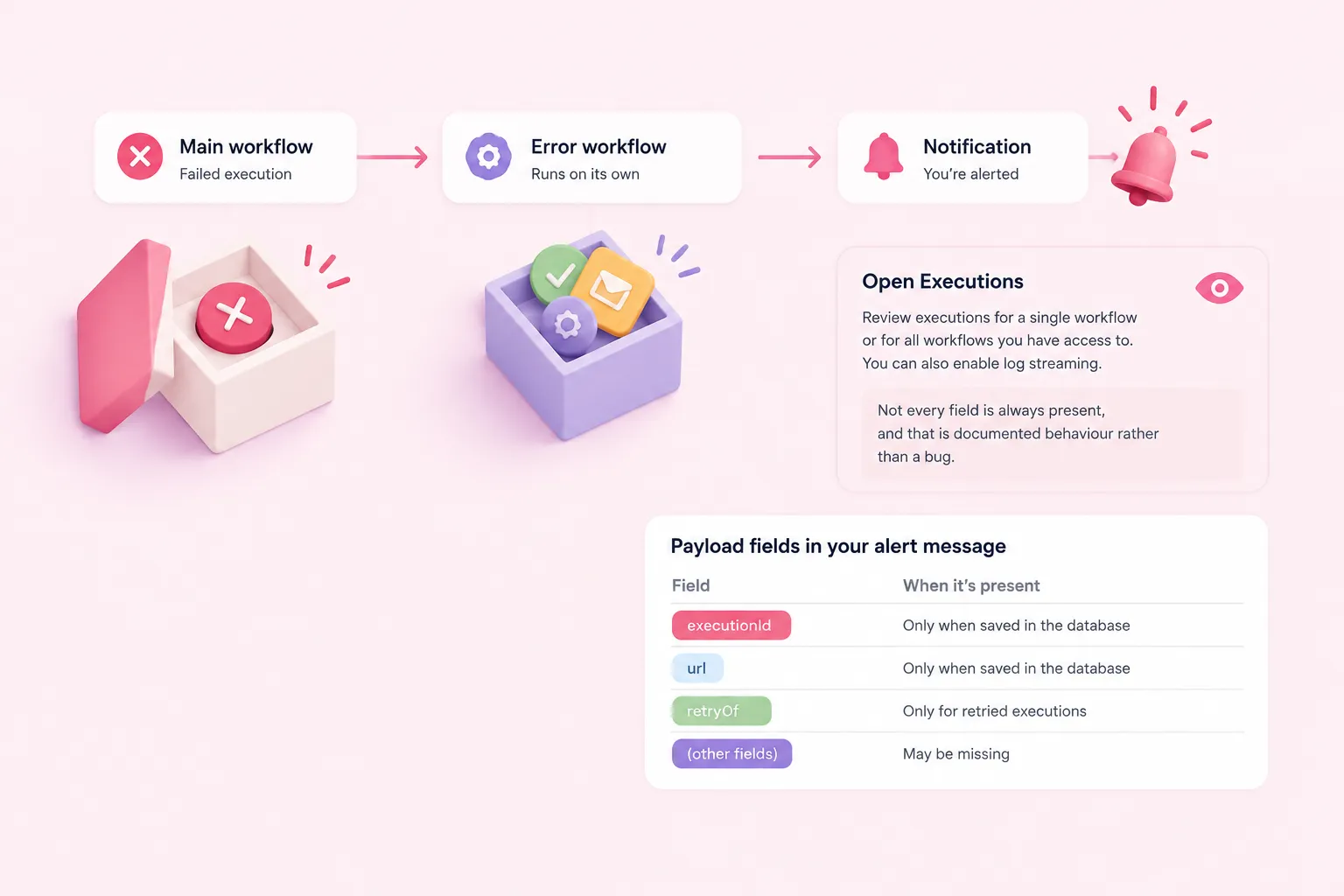
After a failing automatic execution, your n8n error workflow runs on its own and your notification arrives. Open Executions to confirm: you can review executions for a single workflow or for all workflows you have access to, and you can also enable log streaming.
Not every field is always present, and that is documented behaviour rather than a bug. The execution id and url require the execution to be saved in the database, and they are absent when the trigger node of the main workflow itself errors. The retryOf field appears only for retried executions.
The table below summarises what to expect from each part of the payload when you design your alert message.
| Field | What it tells you | When it may be missing |
|---|---|---|
| execution.id | Which run failed | Execution not saved to the database |
| execution.url | Direct link to the run | Trigger node of the main workflow errored |
| execution.error | Message and stack | Unknown |
| execution.lastNodeExecuted | Where it stopped | Unknown |
| execution.retryOf | The original run retried | Present only for retries |
| workflow.id and name | Which automation broke | Unknown |
Sources: Error Trigger | Nodes | n8n Docs, Handle errors gracefully | Build | n8n Docs
Troubleshooting a silent n8n error workflow
The most common surprise is silence during testing. The documentation states that you cannot test error workflows by running a workflow manually: the Error Trigger fires when an automatic execution errors. Let the schedule, webhook or other trigger do the work instead of pressing Execute.
If alerts arrive but the execution link does not resolve, check the retention settings in the same settings modal, which control whether failed executions of published workflows are saved. On self-hosted n8n, instance-level pruning also removes execution data after a configurable age, with a documented default of 336 hours.
From failure to a triaged alert
- Automatic run fails: A scheduled or webhook-triggered execution errors on a node.
- Error Trigger fires: The linked error workflow starts and receives the failure details.
- Message composed: Workflow name, id and last executed node go into the alert text.
- Team notified: The notification node delivers the alert to your chosen channel.
- Execution reviewed: Someone opens Executions to inspect the failed run.
Also decide which failures deserve a human at all. The HTTP Request node documentation describes enabling Retry on Fail with Max Tries and Wait Between Tries in milliseconds, which is useful against rate-limit responses; transient blips then recover without paging anyone.
An older walkthrough on the n8n blog by Tanay Pant, published in 2020 and built with n8n 0.111.0, pairs an Error Trigger with notification nodes and a deliberately broken second workflow. Node names and the interface have changed since, so treat that article as an illustrative pattern rather than current steps.
Sources: Error Trigger | Nodes | n8n Docs, Configure workflow settings | Build | n8n Docs, Executions | Deploy | n8n Docs, Common Issues | Nodes | n8n Docs, Creating error workflows in n8n – n8n Blog
Team practices and n8n best practices around error handling
Once the pattern works, make it a convention rather than a personal habit. Because one n8n error workflow can serve many workflows, agree as a team that every automation promoted to production gets the shared Error Handler attached before it is switched on, and add that line to your review checklist.
That single convention is the core of n8n best practices around failure handling: one owned handler, attached deliberately, tested before go-live. n8n's documentation does not measure how much faster teams resolve incidents afterwards, so treat the payoff as operational clarity rather than a proven metric.
Sources: Handle errors gracefully | Build | n8n Docs