
n8n Schedule Trigger Wrong Time? Fix Time Zone and DST
n8n Schedule Trigger wrong time? See which time zone n8n uses, set GENERIC_TIMEZONE or the Cloud setting, and plan for daylight saving time.

Checked against the cited sources on .
Goal, prerequisites and how n8n picks a time zone
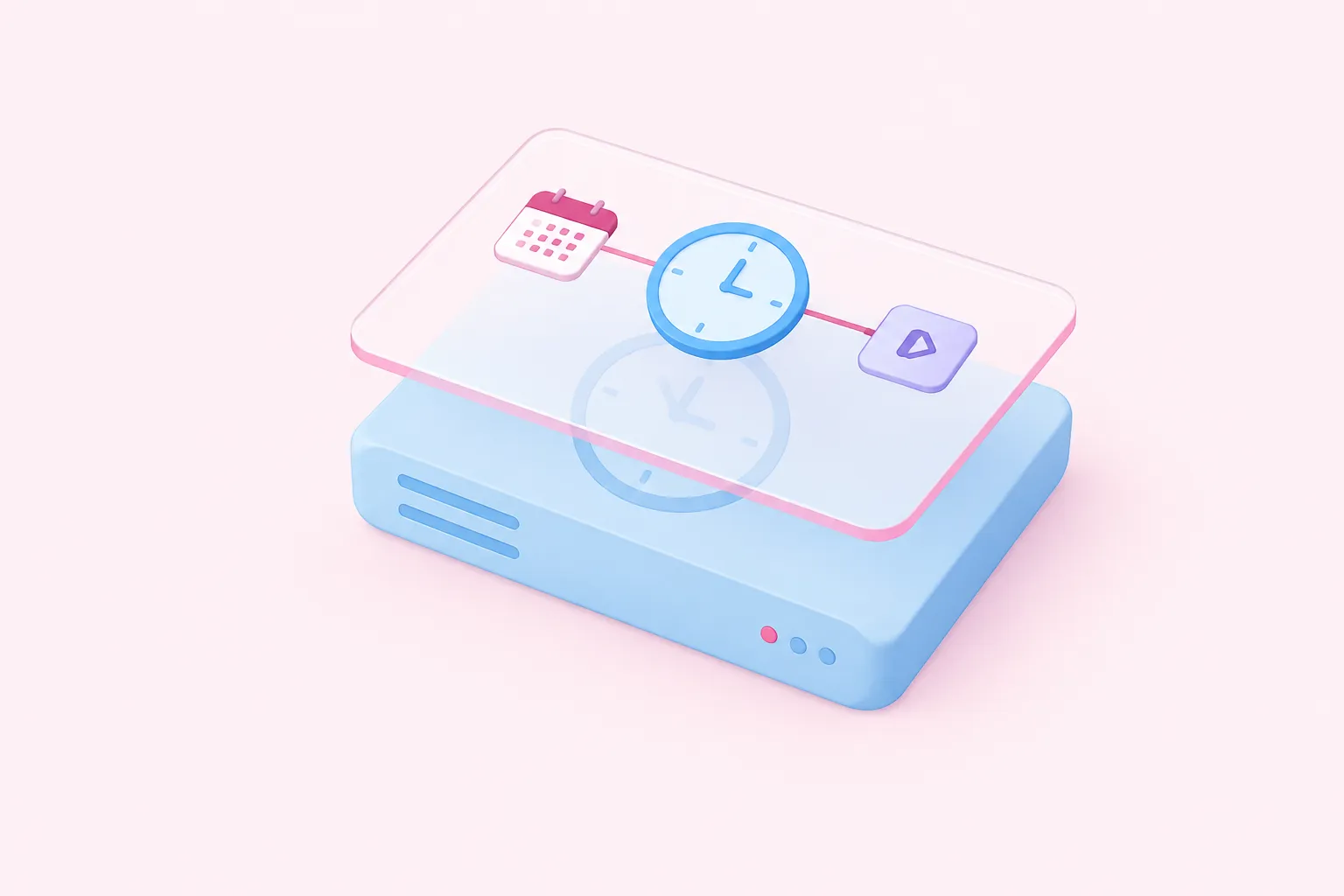
Seeing an n8n Schedule Trigger wrong time problem, where runs fire hours away from what you set? One common cause, according to the n8n docs, is the time zone setting n8n uses. By the end of this tutorial, your scheduled workflow should run at the local time you meant, and you will know what to check around daylight saving time changes.
You need a scheduled workflow you can edit and access to its workflow settings. To change the instance-wide default, you also need either the n8n Cloud dashboard or access to the environment variables of a self-hosted instance.
According to the n8n docs, the Schedule Trigger takes its time zone from the settings in the table below, and the defaults may not match your location, so a workflow with no explicit setting can run hours away from where you expect.
| Setting | Where to change it | Default |
|---|---|---|
| Workflow Timezone | Workflow settings | Not set: the instance time zone is used |
| Instance time zone (Cloud) | Dashboard, Manage, Timezone | Detected at sign-up, otherwise GMT |
| Instance time zone (self-hosted) | GENERIC_TIMEZONE variable | America/New_York |
Sources: Schedule Trigger | Nodes | n8n Docs, Common issues | Nodes | n8n Docs
Steps to fix the n8n timezone setting
To fix an n8n Schedule Trigger wrong time problem, the n8n docs say you can change the time zone for a single workflow or for the whole instance. Follow the steps in order. Setting the workflow time zone first makes sense because it overrides the instance default (see the table above).
Fixing the schedule's time zone
- Open workflow settings: Open the workflow on the canvas, select the three-dots icon in the upper right, then Settings.
- Set Timezone: Pick a named zone such as Europe/London and select Save.
- Set instance default: On Cloud, select Manage on the dashboard and change Timezone; self-hosted, set GENERIC_TIMEZONE.
- Republish: Unpublish the workflow and publish it again so the schedule uses the new settings.
- Confirm: Check that the next execution happens at the local time you intended.
On n8n Cloud, the docs say the dashboard Timezone setting affects both the Schedule Trigger and the Date & Time node. The Cloud docs do not say which plans this applies to. On self-hosted n8n, the docs give an example of exporting the n8n GENERIC_TIMEZONE environment variable with the value Europe/Berlin. They do not say whether you need to restart afterwards. As our editorial advice, plan a restart to be safe.
The docs say a change to the trigger interval only takes effect after you unpublish the workflow and publish a new version. The new schedule then counts from the time you publish. The docs do not say whether a time zone change also needs republishing. Republishing anyway is our editorial advice, not documented behavior. UI labels may also differ between versions.
Sources: Schedule Trigger | Nodes | n8n Docs, Common issues | Nodes | n8n Docs, Set the timezone | Deploy | n8n Docs, Set your timezone | Deploy | n8n Docs
n8n daylight saving time: pick the right kind of zone
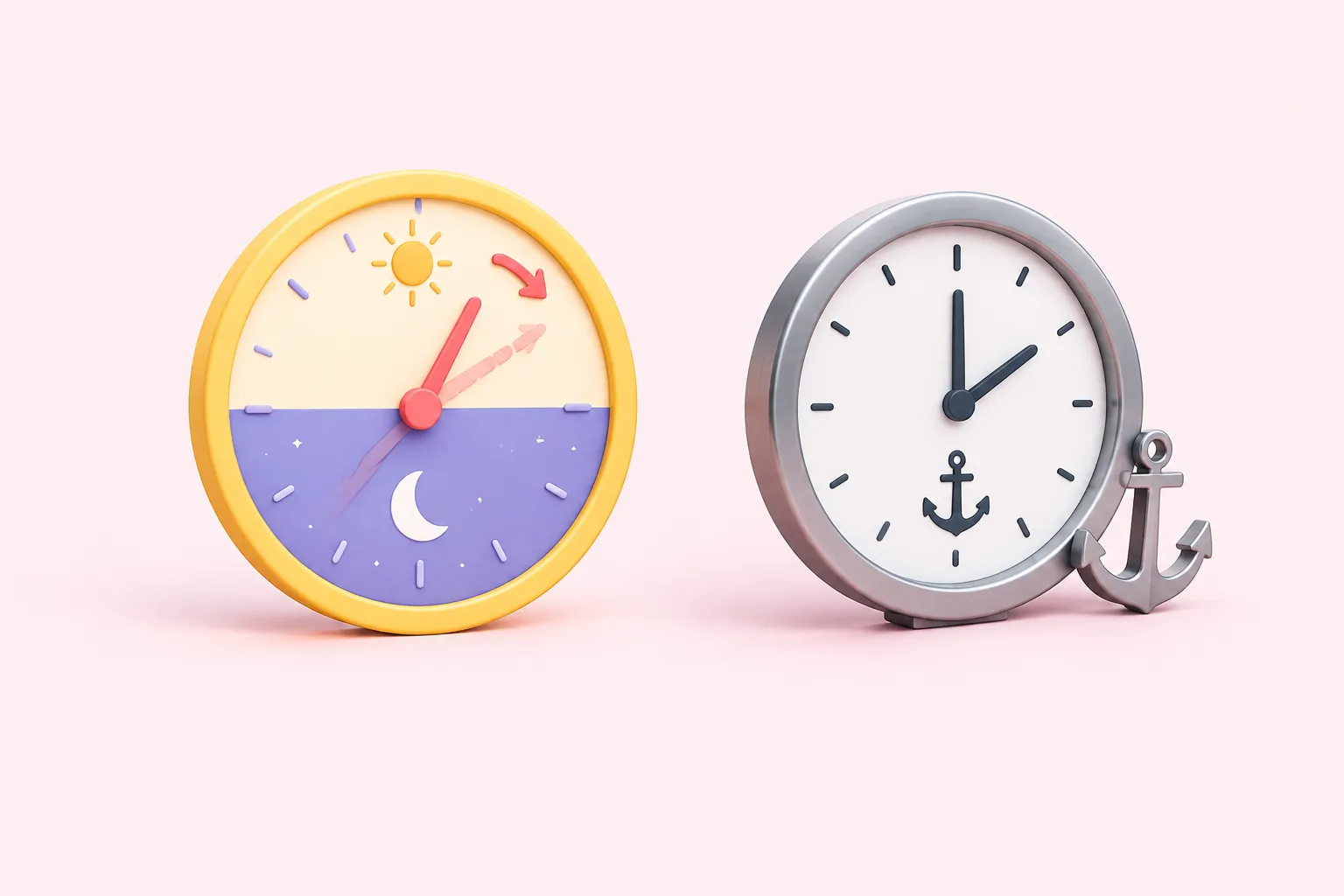
Choose your zone based on what should stay constant: the local clock time, or the UTC time. As editorial guidance, a named, region-based zone such as Europe/London is the natural choice if you care about local clock time, and a fixed GMT option without daylight saving if you want the run tied to UTC.
The n8n docs don't describe this; one community forum thread from 2024 on n8n 1.38.2 in Docker does, so treat it as an anecdote, not documented behavior. In that thread, a user set a workflow to London time but expected GMT. During British Summer Time the trigger ran one hour off from GMT. A responder said it had correctly followed London time and suggested the GMT option without daylight saving if the run should stay aligned with a UTC server.
The n8n documentation doesn't explain what happens to runs scheduled inside the hour that is skipped or repeated when clocks change. Our editorial suggestion: avoid scheduling important jobs in that window.
Sources: Schedule Trigger and Confusion Over Time Zone Settings in n8n Workflow - Questions - n8n Community
Expected results and troubleshooting
After you republish and the next scheduled time passes, check that the run happened at the local time you set in the workflow's Timezone. If you still see an n8n Schedule Trigger wrong time result, work through these checks.
As an editorial recommendation, teams can adopt a shared rule: every scheduled workflow gets an explicit named time zone, and your workflow standards record the instance time zone, whether that is GENERIC_TIMEZONE or the Cloud dashboard setting.
Sources: Schedule Trigger | Nodes | n8n Docs, Common issues | Nodes | n8n Docs, Set the timezone | Deploy | n8n Docs, Set your timezone | Deploy | n8n Docs