
Tracing n8n Item Linking Errors: Why .item Fails and How to Fix It
A beginner tutorial on n8n item-linking errors: identify the error, find the node that breaks the item thread, and fix it with pairedItem or positional methods.

Checked against the n8n documentation on .
Prerequisites and goal
You'll need a multi-step workflow running in your own n8n environment. At least one node in it should output more than one item. You should also know how to map data with basic expressions. One way to create a reference is to drag a field from the INPUT pane into a node parameter, and n8n writes the expression for you.
Here's the goal. A later node uses an expression like $("Some Node").item to read data from a node that isn't directly before it, and that expression fails. By the end, you'll know why it failed and how to repair it. One caveat: the steps below are based on the official documentation, not on firsthand testing, and no n8n version is stated. The wording of error messages and the UI may be different in your version.
How n8n links items through a workflow
When you point at a node that isn't the one directly before your current node, n8n has a problem to solve. That earlier node may have produced many items, so n8n has to decide which one matches the item you're working on right now. It does this by following an item thread back through each node in the chain.
When a node doesn't control linking itself, n8n tries to link items automatically. If a node receives a certain number of items and returns the same number, n8n links them in order: the first output goes with the first input, and so on. Automatic linking stops working in two cases. The first is when the input and output counts are different. The second is when a node creates brand-new items. An .item error means the thread is either broken or leads back to more than one earlier item.
Step 1: Identify which error message you see
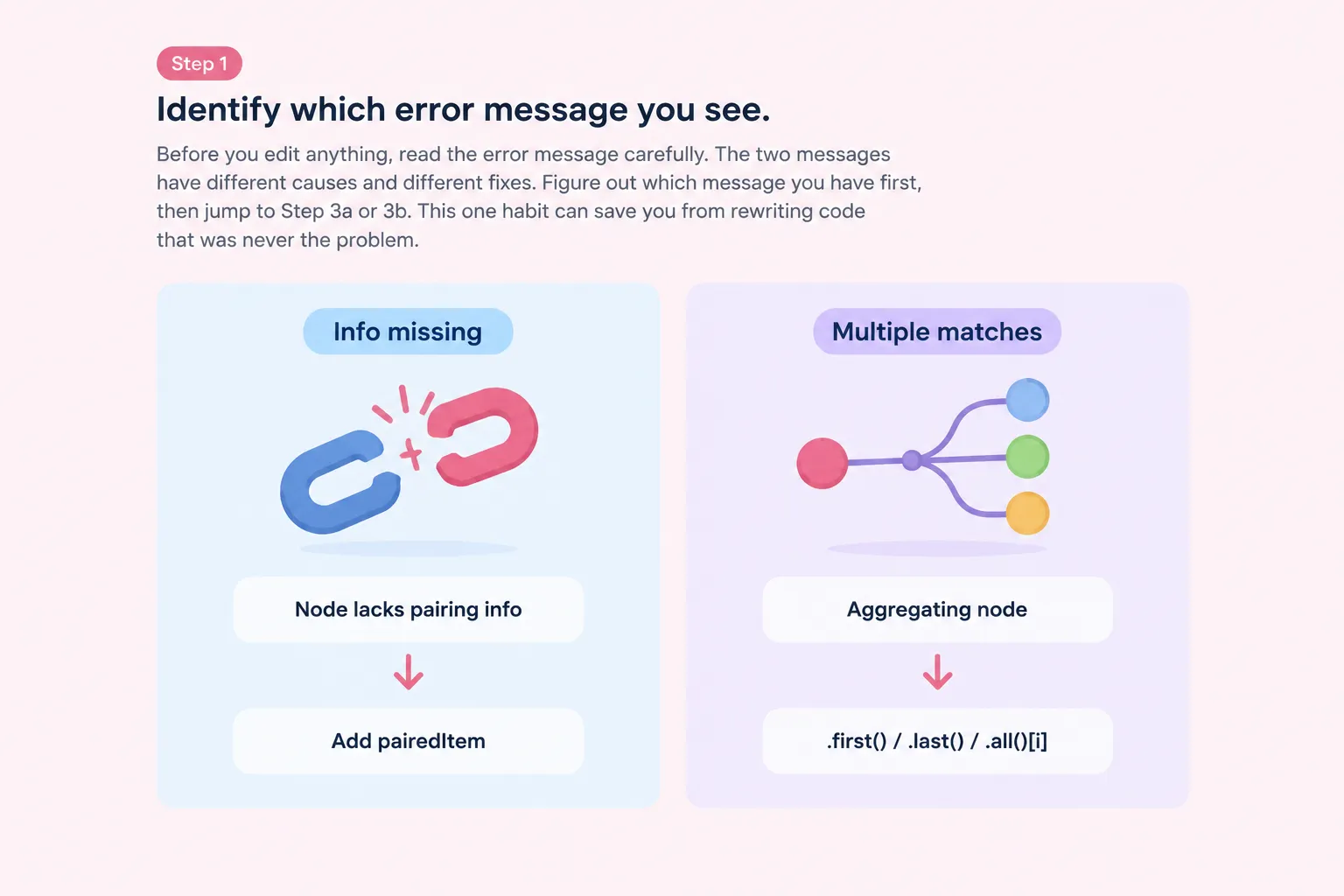
Before you edit anything, read the error message carefully. The two messages have different causes and different fixes. The first says that info for the expression is missing. It means some node in the chain didn't return pairing information, so the thread is broken.
The second says there are multiple matching items. It means the thread still exists but leads back to more than one earlier item, so n8n can't pick one. Figure out which message you have first, then jump to Step 3a or Step 3b. This one habit can save you from rewriting code that was never the problem.
Sources: S1
Step 2: Check which nodes split, merge or create items
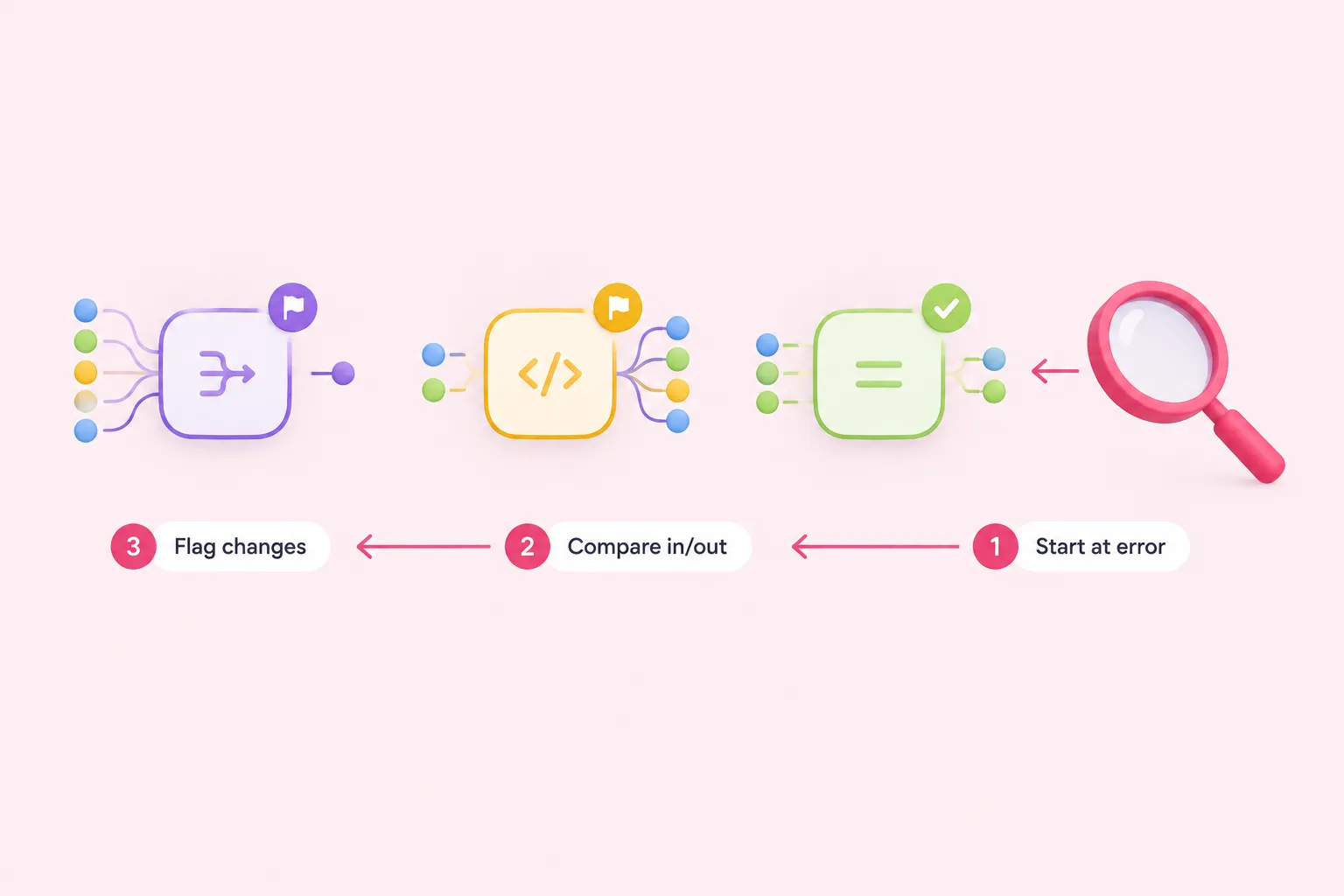
The documentation doesn't describe a visual tool for tracing item threads, so this step is our own suggested method. Begin at the node that shows the error and work backward toward the node your expression references. For each node in between, open it and compare how many items come in with how many go out.
Watch for three patterns. The first is a node that returns a different number of items than it got. The second is a Code node that builds new items from scratch. The third is an aggregating node such as Summarize, Aggregate or Merge. Mismatched counts and new items point to the missing-info error. Aggregating nodes often cause the multiple-matches error.
Step 3a: Fix missing info by adding pairedItem in Code nodes
If the break is in a Code node, set pairedItem on every item you return. Its value should be the index of the input item that produced the new item. When a Code node creates new items without pairedItem, n8n has no way to trace them back to their source items.
As a suggestion for learning, try building a small reproduction. Make a Code node that returns new items without pairedItem, then reference an earlier node with .item further down the workflow. Once you see the error appear, add pairedItem with the right input index and run the workflow again. This setting only matters when the Code node gets more than one item, because the docs say single items are linked automatically.
If the node that breaks the thread is a community or custom node, you can't fix it from inside your workflow. According to the docs, the node's creator has to update it so it returns pairing information.
Step 3b: Fix multiple matches with positional methods
When an aggregating node leaves the thread pointing at several items, you have a few options. You can use .first() or .last(), or you can use .all() with an index to pick one specific item. You can also reference a different node, one whose items still map cleanly to your current item.
Positional methods only work if you know where the item you want sits in the list. If the item order could change between runs, it's safer to fix the root cause or reference another node than to rely on a fixed index. That's our editorial advice, not a rule from the documentation.
Sources: S1
Expected results after the fix
Run the workflow again. The expression should resolve without either error. Open the node's output and check each item against its source so you know it pulled the right data. Getting some value isn't enough, because it could be the wrong item.
If you added pairedItem, the new items should now trace back to their inputs. If you used a positional method, check a run where the order changes, if your data allows that, so you can confirm it still picks the item you expect.
Troubleshooting
If you still see missing info and your own nodes look fine, check for community or custom nodes in the chain. The fix has to come from their creators. Also keep in mind that pairedItem only matters when a Code node receives more than one item; n8n links single items automatically.
If you're writing code and need linked data from an earlier node, you can use itemMatching inside the Code node. Pass it the index of the current input item and it returns the matching item from the earlier node. The documentation's example for this uses a training dataset, so adjust the node names to fit your workflow.