

Transform Nested JSON into Simple Records in n8n
A practical tutorial for turning a nested API array into one clean n8n item per record with Split Out and Edit Fields, plus a Code node fallback for irregular data.

Checked against the n8n documentation on .
Goal and expected output
The goal is to take one n8n item containing a nested array and produce a simple list of records. For an editorial example, imagine that the incoming item contains a data.customers array. Each customer has an id, profile.name, profile.email, and perhaps other fields that you do not need.
After the transformation, each array element should become a separate n8n item. A deliberately simple result might contain only customerId, name, and email. If the source array contains five customers, the expected result is five output items. This sample structure is illustrative rather than a payload supplied by an API or an officially documented recipe.
The main path uses Split Out to separate the array and Edit Fields to shape each resulting item. Split Out is designed to turn a list contained in one item into multiple items, while Edit Fields can create or overwrite fields using incoming data. A Code node is best reserved here as a fallback when the structure varies too much for straightforward field mapping.
Prepare the workflow and sample data
You need access to your own n8n environment and a known JSON response. The learning website does not provide a hosted n8n execution environment, so prepare an environment where you can create and run a workflow. You also need to know the API endpoint and any authentication it requires if you plan to retrieve live data.
An HTTP Request node can retrieve information from a REST API. Configure it for the service you are using, then run it to obtain a representative response. Because endpoints, credentials, and response shapes differ by service, follow that API’s documentation rather than copying assumptions from this tutorial.
For safer practice, consider using a small pinned or previously retrieved sample. As a suggested editorial example, use an object whose data field contains a customers array. Include two or three records with fields such as id, profile.name, profile.email, and status. This makes it easier to compare the workflow output at every stage without depending on a changing live response.
Sources: S4
Inspect the response in JSON view
Open the node that supplies the response and inspect its output. n8n provides Schema, Table, and JSON views for node input and output. JSON view is particularly useful for confirming the nesting and copying the exact path to the array you want to split.
Find the array itself rather than an individual property inside its records. In the suggested sample, the target is data.customers, not data.customers.profile or data.customers.profile.name. Check spelling, capitalization, and every wrapper object in the path.
Do not rely only on Schema view when records may differ. The supplied documentation notes that Schema represents the first item, so it may not expose variation elsewhere. Review the JSON and, when helpful, the Table view before deciding that every record has the same fields.
Sources: S3
Split the nested array into separate items

Add a Split Out node after the source node. Configure the field to split with the exact path to the nested array, such as data.customers in the editorial sample. If the interface offers a choice related to dot notation, make sure its behavior matches the way you entered the nested path.
Run the Split Out node and inspect its output. The intended result is one n8n item for each element of the source array. If the array contained three customer objects, the node should produce three items. This count comparison is a practical verification step suggested for this tutorial, not evidence of automated grading.
Decide deliberately whether to retain fields from the wrapper item. Wrapper data may be useful when it contains context that every record needs, but it can also clutter the result. If the output contains unexpected top-level fields, revisit the Split Out configuration and the choice about retaining other fields.
Map each item into a simple record
Add Edit Fields after Split Out and use Manual Mapping mode. Create the keys required by the destination of your workflow. For the sample, you might create customerId from id, name from profile.name, and email from profile.email. These names and paths are suggestions for the illustrative payload, not universal API fields.
Map each new field from the current split item. Edit Fields supports setting new data and overwriting existing data from incoming values, which makes it suitable for renaming properties and selecting a smaller output shape.
When you want a clean record containing only the mapped keys, enable the option that keeps only set fields. Run the node and inspect several items rather than only the first. Confirm that every output item contains the expected keys and that values came from the corresponding source record.
Verify the transformed records
Compare the number of items after Edit Fields with the length of the original array. They should match for this direct one-element-to-one-item transformation. Then examine the output in JSON or Table view to confirm that the selected fields have the expected names and values.
Check more than the first record. Look for missing email addresses, additional nesting, null values, or fields whose types vary between records. Schema view alone may hide these differences because it reflects the first item.
A successful result for the suggested sample is a sequence of separate items, each containing customerId, name, and email only when the keep-only-set-fields option is enabled. If you retained other fields intentionally, document why they remain so the next workflow step has a clear input contract.
Use a Code node for irregular structures
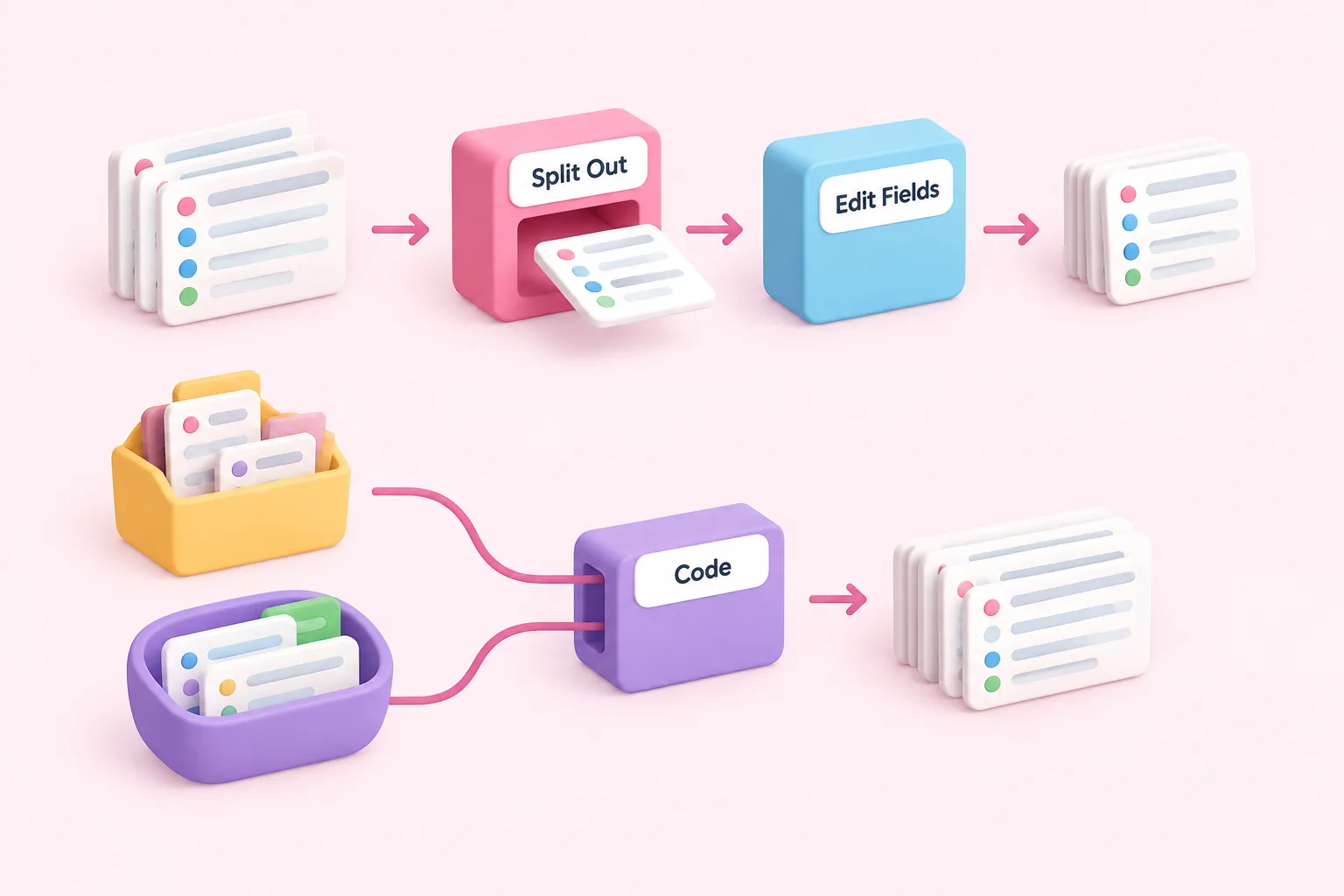
Use a Code node when the incoming structure cannot be expressed cleanly as one stable array path followed by consistent mappings. Examples might include arrays that appear under alternative paths or records that require conditional normalization. These are suggested scenarios, not comparative evidence that code is faster or more reliable.
The Code node supports custom JavaScript or Python, but custom logic must follow n8n’s expected input and output structure and account for item linking. Build the smallest transformation that handles the known variants, and inspect its output carefully.
A suggested implementation strategy is to read each incoming item, select the first available array from an explicit list of known paths, normalize each record into the same set of keys, and return one n8n item per normalized record. Treat this as an editorial design pattern rather than an officially validated recipe. If a stable Split Out and Edit Fields configuration handles the payload, it remains easier to inspect visually and avoids unnecessary custom logic.
Troubleshoot common output problems
If Split Out produces no useful items, return to JSON view and verify the complete array path. A path aimed at a record property instead of the array, a misspelled wrapper key, or mismatched dot-notation behavior can prevent the intended split.
If every output item still contains unwanted wrapper fields, review whether Split Out retained surrounding data and whether Edit Fields is configured to keep only the fields you set. If mapped values are empty, inspect one split item and adjust expressions to its post-split shape rather than the original wrapper shape.
If some records work and others fail, inspect all items in JSON or Table view. The first item may not reveal inconsistent nesting or missing properties. Decide whether optional values can remain empty, require a fallback mapping, or justify conditional normalization in a Code node. Finally, compare the source array length with the output item count and inspect representative records before connecting downstream actions.
Practice the transformation
Repeat the exercise with a second sample whose array uses a different wrapper path. First identify the array in JSON view, then split it, map a minimal record, and verify both the output count and field shape. As an optional extension, introduce one inconsistent record and decide whether a fallback expression or a Code node is appropriate.
Keep the distinction between the tools clear: n8n is the environment where you build and run the workflow, while n8n Balloon Challenges is a hands-on learning website and event format. It offers practical automation challenges with progressive tips, and participants build in their own n8n environment.