

n8n RAG tutorial: build a Google Drive assistant
A hands-on n8n RAG tutorial: index a Google Drive folder, query it with an AI Agent that names its sources, and see which limits apply before indexing confidential files.

Checked against the cited sources on .
Goal: what this n8n RAG tutorial builds and what you need
This n8n RAG tutorial walks through a chat assistant that searches a Google Drive folder before it answers, then names the files behind each answer. Retrieval-augmented generation, RAG for short, lets an agent ground its replies in your own documents instead of guessing. By the end you'll have a working Drive assistant you can test locally, plus a clear picture of what still needs checking before you point it at anything confidential.
If you'd rather build this hands-on with a mentor nearby, our own Ask Your Google Drive challenge walks through the same pattern end to end, using the same kind of nodes described below.
Before you start, you'll need four things in place:
Sources: RAG chatbot for company documents using Google Drive and Gemini | n8n workflow template, Retrieve relevant context | Build | n8n Docs, Google Drive | Nodes | n8n Docs
Step by step: fetch, insert, query, and cite
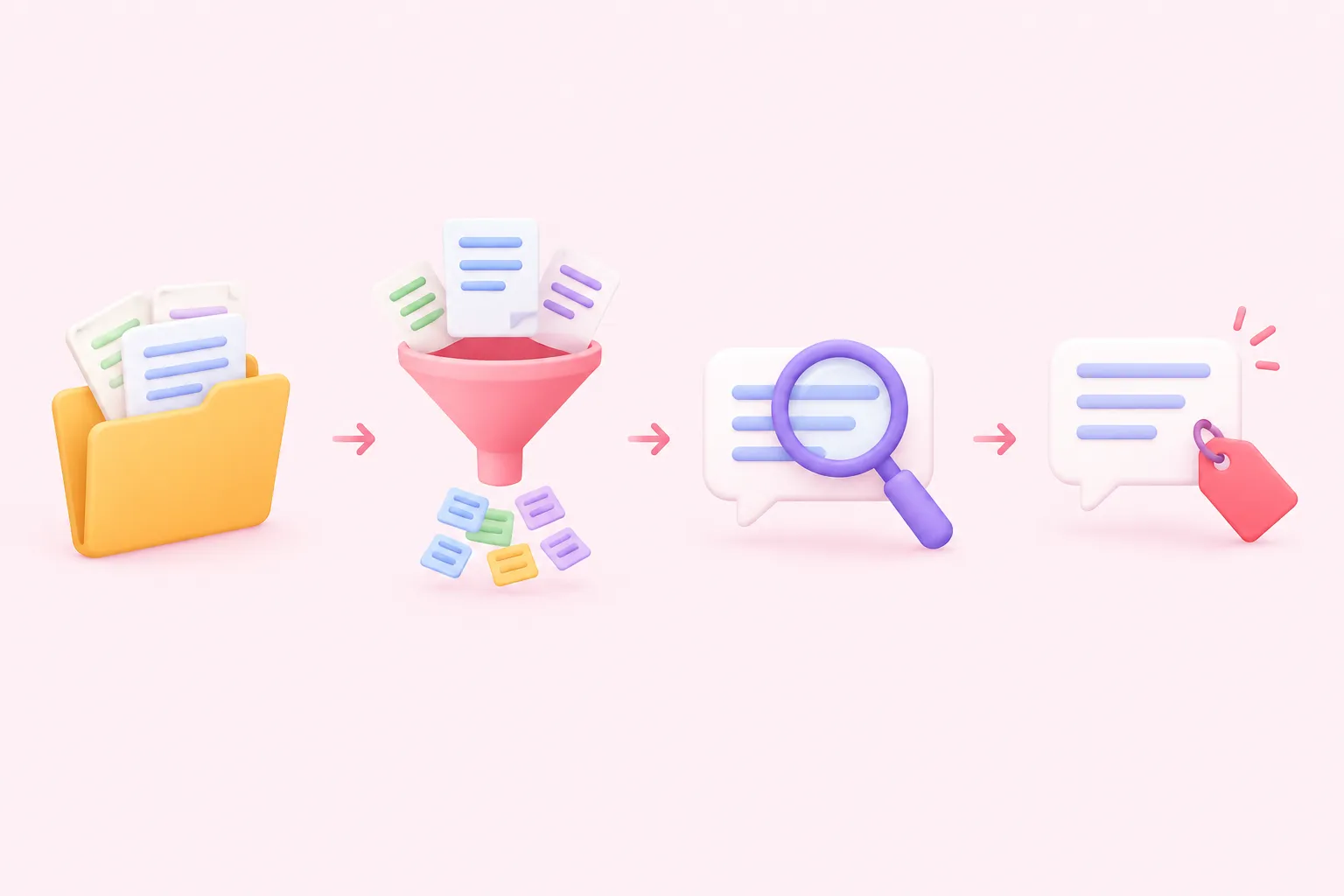
Building this assistant comes down to four steps, each matching a short run of nodes in your workflow.
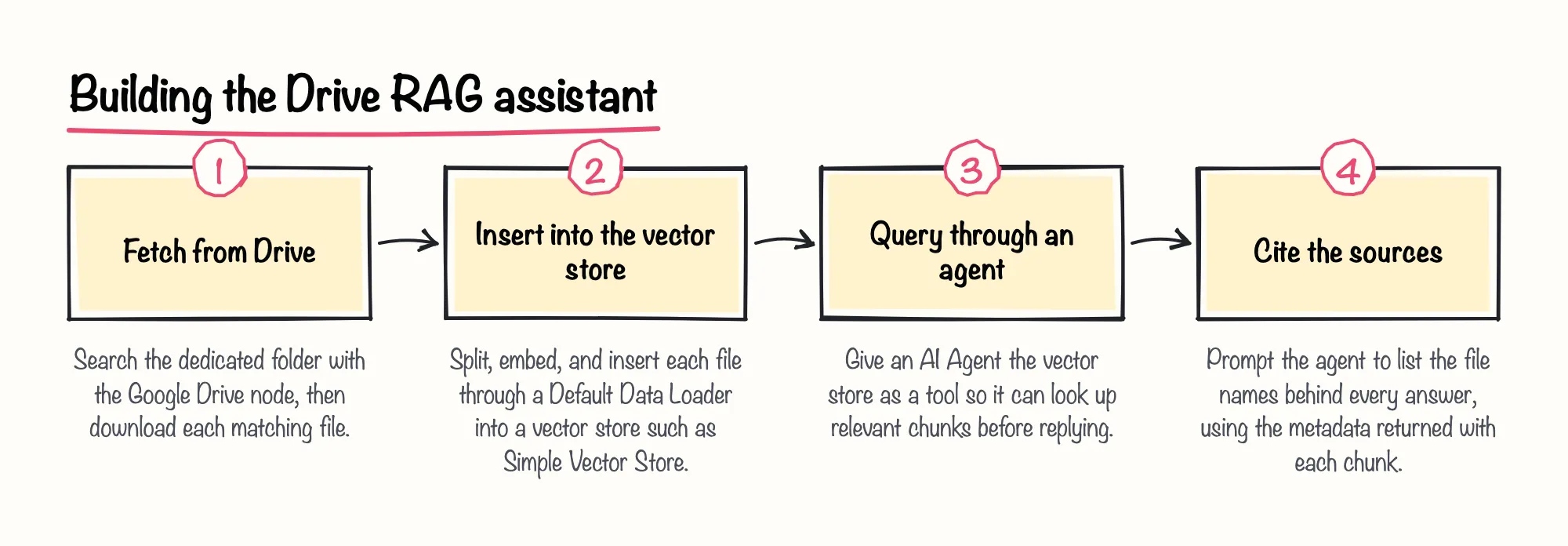
The Google Drive node supports searching files and folders, and a separate download operation, which is the step a data loader needs before it can read a file's content.
For the insert step, add a vector store node, such as Simple Vector Store, and set it to the Insert Documents operation. Feed it through a Default Data Loader; n8n's docs point to the Recursive Character Text Splitter for most cases, though real chunk sizes depend on your data. Store the file name and file ID as chunk metadata so answers can point back to the right document. Our practical take: start with n8n's suggested splitter and its default settings, and only tune chunk size once you actually see retrieval misses in testing.
On the query side, add the same vector store as a tool to an AI Agent, and use the same embedding model you used when inserting the data. Turn on Include Metadata so retrieved chunks carry the file name and ID back to the agent.
Naming sources isn't a built-in n8n feature; it's prompt design built on that metadata. Tell the agent, in its system prompt, to end every answer with a short Sources line listing the file names it relied on, and to say plainly when it found nothing relevant rather than inventing one.
Sources: Retrieve relevant context | Build | n8n Docs, Google Drive | Nodes | n8n Docs
Expected results
Once everything is wired up, a working test looks like this: you ask the assistant a question covered by your Drive folder, and it replies with an answer plus a short Sources line naming the right file. Ask something outside the folder's content, and a well-prompted agent should say it found nothing rather than fabricate a Sources line. We're optimistic that this small citation habit catches more ungrounded answers than most teams expect, simply because it forces the agent to point at something checkable.
Treat a first pass as a draft: open the file it names and check the answer actually matches. Nothing in n8n's documentation guarantees citation accuracy, since it depends entirely on your chunk metadata and prompt.
Sources: Retrieve relevant context | Build | n8n Docs
Before indexing confidential files

Simple Vector Store is the easiest node to start an n8n RAG workflow with, but n8n's own docs describe it as suited to development use only, not production. Its index lives in memory, and all data is lost when n8n restarts. On n8n Cloud it's also capped, by default, at 100MB and a 7-day retention window; self-hosted instances carry no such limit out of the box.
| Store | Persistence | Who can reach it | Documented use |
|---|---|---|---|
| Simple Vector Store | In n8n's memory; lost on restart (Cloud: capped at 100MB, 7-day retention) | Any user of the same n8n instance | Development use only, per n8n's docs |
| Persistent store (e.g. Pinecone, PGVector, Qdrant) | Not documented in the supplied source | Not documented in the supplied source | Named as alternatives in n8n's docs; access controls not covered |
More importantly for confidential files, Simple Vector Store's memory keys are global: every user of the same n8n instance can reach that index, regardless of whatever access controls the workflow itself has. We'd never let this node hold anything sensitive on a shared instance, even briefly.
Before pointing this build at real company documents, move to a persistent vector store, keep indexing restricted to one dedicated folder, and separately check who can reach both that store and the Drive credentials behind it. The supplied docs name alternatives like Pinecone, PGVector and Qdrant but don't describe their access controls, so that check, along with Drive permissions carrying into the index, is still yours to do; treat it as an open question rather than a solved one.
Sources: Simple Vector Store | Nodes | n8n Docs
Keeping the index fresh and troubleshooting
Documents change, so a one-time index for an n8n RAG assistant goes stale. A community-built n8n template for a company-document RAG chatbot uses two Google Drive Trigger nodes, one watching for new files and one for updated files in a single folder, feeding changes into a persistent store. It's a workflow template rather than official documentation, and it was built on an older chat model, so treat its node choices as a starting pattern, not a fixed recipe.
The dedicated-folder habit from that template is worth keeping regardless of which vector store you land on: it limits what ever gets indexed in the first place.
Two Google Drive OAuth errors come up often. If the connection fails outright, the usual cause is a mismatch between the redirect URL registered in Google's OAuth configuration and the one n8n is using; self-hosted users should check their N8N_EDITOR_BASE_URL and WEBHOOK_URL settings.
If a working connection suddenly stops after about a week, check your Google Cloud app's publishing status: apps left in Testing mode with external users have consent and tokens that expire after seven days, and the fix is reconnecting the credential in n8n's credentials modal.
If answers never carry a Sources line, the fault is almost always upstream: confirm Include Metadata is switched on in the vector store's retrieval settings, and confirm the file name and ID were actually written into chunk metadata at insert time.
Sources: RAG chatbot for company documents using Google Drive and Gemini | n8n workflow template, Common issues | Nodes | n8n Docs, Retrieve relevant context | Build | n8n Docs