
HR Workflow Examples: A Practical Form-to-Record n8n Tutorial
Practical HR workflow examples in n8n: turn a candidate or employee form submission into a stored spreadsheet record and an automatic email or Slack notification.

Checked against the cited sources on .
HR Workflow Examples: What You'll Build in This n8n Tutorial
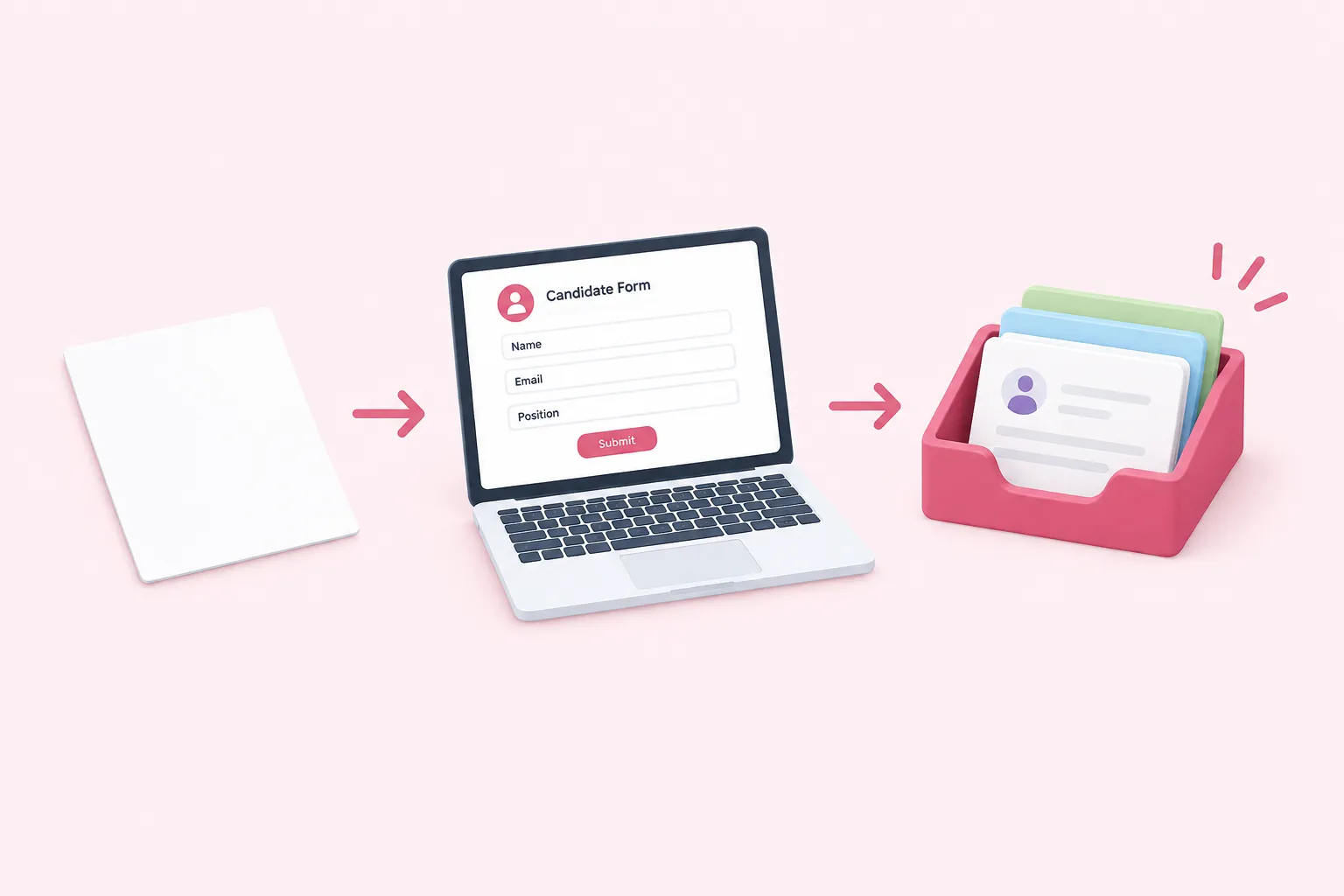
This tutorial builds one of the more practical HR workflow examples you can put together in n8n: a workflow that takes a candidate or employee form submission, stores it as a permanent record, and notifies the right person automatically. It works whether you're collecting job applications, internal leave requests, or onboarding paperwork, and the same intake-store-notify pattern shows up across many n8n workflow automation use cases well beyond HR, including intake-heavy legal workflow examples like contract requests or NDA approvals.
Vendor write-ups describing n8n for HR automation frame this same shape — creating a record, triggering follow-up tasks, and notifying relevant teams — as the core pattern of an onboarding-style workflow. Treat that framing as one illustrative pattern from a vendor blog rather than a documented n8n feature; the steps below build the pattern from n8n's own node documentation instead.
Sources: n8n for HR Automation | Onboarding, Leave & Payroll Workflows
Prerequisites: n8n Instance, Google Sheets and Email/Slack Credentials
Before you start, make sure you have a few pieces ready. You'll need somewhere to edit workflows, a spreadsheet to write to, and a way to reach whoever needs to see each submission.
Because this workflow stores candidate or employee names, emails and other submission details in a shared spreadsheet and routes them by email or Slack, check your own team's data-protection and compliance requirements for handling that kind of HR data before you publish it.
Sources: Google Sheets | Nodes | n8n Docs, Send Email | Nodes | n8n Docs, Slack | Nodes | n8n Docs
Step 1: Create the Intake Form with the n8n Form Trigger
Add a Form Trigger node as the first node in a new workflow. The Form Trigger starts a workflow when someone submits a form, and n8n generates the form page itself, so you don't need a separate form-building tool. Define the fields you need — for example a name, an email address, the position or request type, and free-text notes — and give the form a clear title, since applicants or employees will see exactly what you configure.
Building the HR intake workflow step by step
- Capture: A Form Trigger node collects the candidate or employee submission and starts the workflow.
- Test: Submissions are checked against the Test URL inside the editor before anything goes live.
- Store: A Google Sheets node appends the submission as a new row in a prepared sheet.
- Notify: A Send Email or Slack node alerts the person or channel responsible for reviewing it.
- Route (optional): A Switch node sends different request types to different reviewers instead of one shared inbox.
- Publish: The workflow is saved and published, then the form is shared using its Production URL.
Sources: n8n Form | Nodes | n8n Docs
Step 2: Test the Form Using the Test URL Before Going Live
Open the Form Trigger node and copy its Test URL. Submit a few test entries through that URL while the workflow is open in the editor, so you can watch each submission's data land in the node's output and confirm your field names and values look the way you expect before anything touches your live spreadsheet or notification channel.
Sources: n8n Form | Nodes | n8n Docs
Step 3: Store Each Submission as a Row in Google Sheets
Add a Google Sheets node after the Form Trigger and connect it to the sheet you prepared. The Google Sheets node is n8n's built-in way to automate spreadsheet work, and the operation you want here is Append Row, which adds each new submission as a new row at the end of the sheet. If your form field names already match your sheet's column headers, n8n can map them automatically; otherwise, insert an Edit Fields (Set) node beforehand to align the names.
Sources: Google Sheets | Nodes | n8n Docs, Sheet Within Document operations | Nodes | n8n Docs
Step 4: Notify the Right People by Email and/or Slack

With the record safely stored, add a notification step. n8n's Send Email node delivers messages over a standard SMTP server, which is enough to alert an HR inbox or a hiring manager whenever a new submission arrives. If your team lives in Slack instead, the Slack node's Send a Message operation posts straight to a channel, so a recruiting or people-ops channel sees the new submission right away.
One limitation is worth knowing before you rely on this for real communication: the Send Email node can't set threading headers like In-Reply-To, so every automated HR notification email arrives as its own separate conversation rather than a reply inside an existing thread. If threaded replies matter to your team, look at the Gmail node's reply operation instead of the core Send Email node.
That silent-failure risk applies directly to the notification step above: if the email or Slack node fails and nothing else is watching, the record still lands in your sheet but nobody hears about it. As one automation practitioner writing about n8n onboarding workflows describes the stakes of a missed alert:
Sources: Send Email | Nodes | n8n Docs, Slack | Nodes | n8n Docs
Step 5 (Optional): Route Notifications by Department or Request Type
If different request types need different reviewers — a candidate application versus an internal leave request, say — add a Switch node right after the Form Trigger, or after the Sheets node if you want every submission logged regardless of type, and branch by a field like request type or department. Route each branch to its own Send Email or Slack message so the person who actually needs to act gets pinged, instead of everyone getting a copy of everything.
Sources: Slack | Nodes | n8n Docs
Publish the Workflow: Switching to the Production URL
Before an HR form can be used for real, the workflow needs to be saved and published, not just left running in test mode; n8n's own documentation is explicit that saved-and-published status is a prerequisite for production use. Once that's done, switch the form's URL from the Test URL to its Production URL and share that link with candidates or employees. Production submissions won't show up live in the editor the way test ones do, so you'll rely on your Google Sheet and notifications to confirm things are working.
Sources: n8n Form | Nodes | n8n Docs
Expected Results After a Submission
After a real submission, a new row should appear in your Google Sheet, and a notification should land in the configured inbox or Slack channel. If you added routing in Step 5, the notification should reach the branch-specific recipient rather than a single shared address, and the record in your sheet should look identical regardless of which branch handled it.
Sources: Sheet Within Document operations | Nodes | n8n Docs, Slack | Nodes | n8n Docs
Troubleshooting Common Issues
Most early problems with HR workflow examples like this one trace back to a handful of causes.
Sources: n8n Form | Nodes | n8n Docs, Google Sheets | Nodes | n8n Docs, Send Email | Nodes | n8n Docs
Where to Go Deeper
This walkthrough covers one of many practical HR workflow examples, and the same intake-store-notify shape adapts easily to adjacent processes — from IT asset requests to legal workflow examples like contract intake — once you're comfortable branching and swapping notification channels. A vendor blog describing similar automations also mentions sending a personalized notification, such as a welcome email, once an upstream event like a signed offer occurs.
Sources: Why Automating Employee Onboarding with n8n Changes Everything - Abdul Wahab Ahmad