

Build an idempotent n8n webhook that skips retried requests
Learn to store idempotency keys in an n8n data table, skip retries that arrive one after another, test in Executions, and understand the concurrency limit.

Checked against the n8n documentation on .
What idempotency means for a webhook, and what you need
Here's a plain definition, in our own words: a webhook is idempotent when getting the same request a second time doesn't create a second record or repeat a side effect. This matters because many senders retry when they don't get a clean answer. How and when they retry depends on the sender, and the n8n docs used for this tutorial don't cover that.
Before you start, you need three things. First, your own n8n instance. Second, a workflow that starts with a Webhook trigger. Third, access to data tables. You also need a sender that includes its own idempotency key with each request, such as a header or a body field. We suggest you don't generate the key inside n8n. A key created per execution is different every time, so it can't tell you that two requests are really the same one.
The goal is one record per idempotency key, even when the sender retries. New keys run the side effect, like creating an order or sending an email. Repeated keys get a clear answer and nothing else happens. This guide is based on the official documentation. We haven't tested it firsthand.
Steps 1 and 2: Secure the webhook and create the key table
Add a Webhook node. Under authentication, require callers to use Basic, Header or JWT auth. Our reasoning is simple: it limits who can call the webhook. Setting up the credentials is covered on a separate docs page. Next, set the Respond option to use a Respond to Webhook node. That lets you choose what the sender receives, including a custom response code. Keep in mind that the Respond to Webhook node runs only once and uses the first incoming item.
Also remember that the production URL goes live only after you publish the workflow.
Now create a data table for processed keys. A simple layout has a column for the key and, if you like, a column for when you received it. The n8n docs specifically list storing markers to prevent duplicate runs as a use for data tables, so this fits the intended purpose.
Steps 3 to 5: Check, record, act and respond
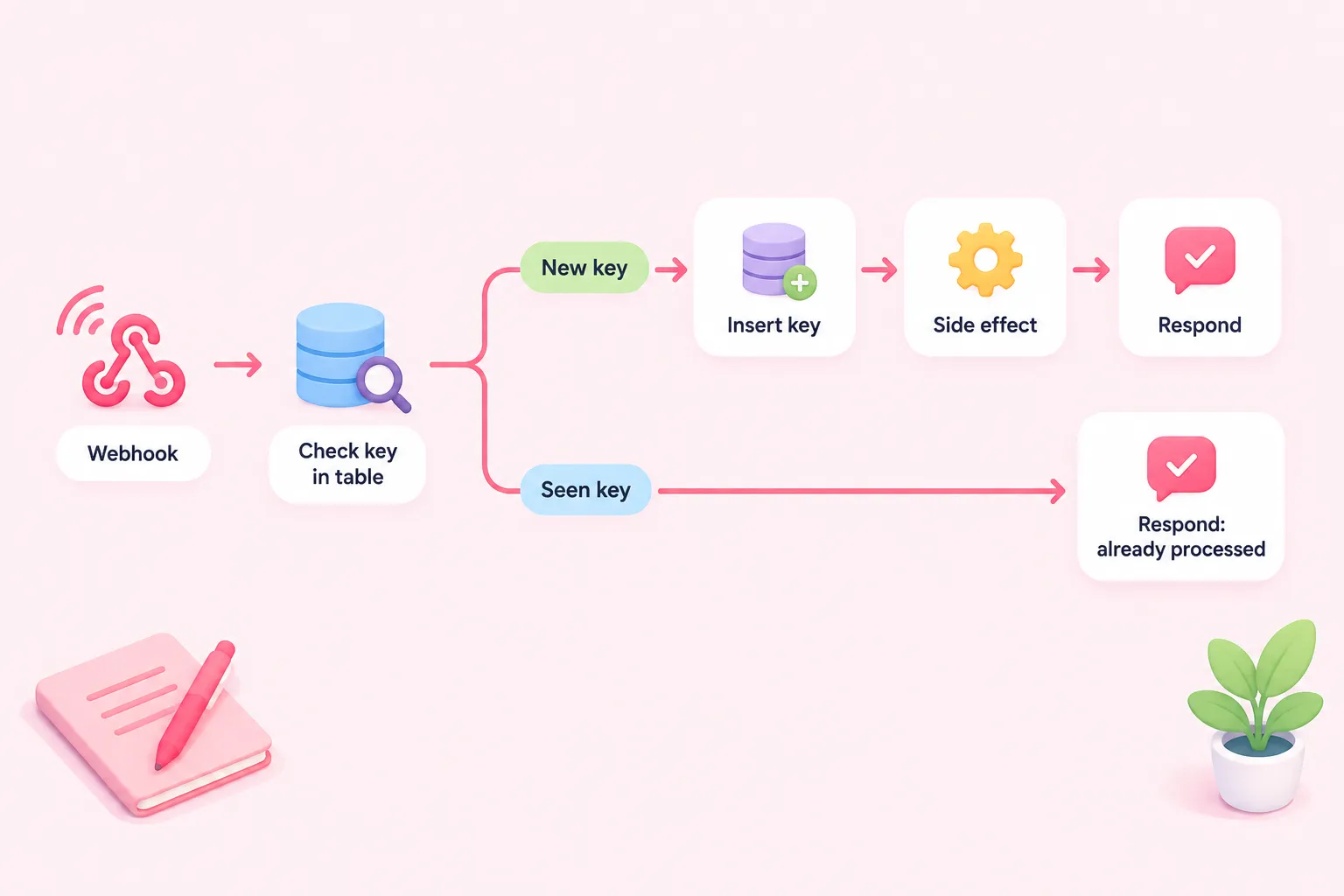
Step 3: Right after the webhook, add a Data Table node that splits incoming items by whether a matching row already exists. Match the key from the request against the key column. You now have two branches: new keys and keys you've already seen.
Step 4: On the new-key branch, insert the key with the Insert operation, then run your side effect. There's a tradeoff you should decide on purpose. If you record the key first, a crash during the side effect means a retry gets skipped, so the work may never happen. If you record the key after the side effect, a crash between the two can let a retry run it again. Upsert is also available, and it updates a row that already exists. The docs don't say it's safe when requests arrive at the same time, though.
Step 5: End both branches with a Respond to Webhook node. As an editorial suggestion, return a success-style status for duplicates too, with a message that says the request was already processed. That way senders have no reason to keep retrying. n8n doesn't require any particular status code. The choice is yours and your sender's.
Step 6: Test by sending the same request twice
Publish the workflow and send one request with a made-up key, using any HTTP client you like. Then send the exact same request again. What you should see: the first call runs the side effect and adds one row, and the second call gets your duplicate response without adding a row. Send a third request with a different key to confirm that new keys still go through.
Production runs don't show their data in the editor, so open the workflow's Executions tab to see which branch each run took. Then check the data table to confirm there's only one row for the repeated key.
Sources: S1
Alternative: the Remove Duplicates node
If you don't need a table you can look through, the Remove Duplicates node can drop items whose values showed up in earlier executions. It's available in n8n 1.64.0 and later. By default it stores 10,000 items, and you can change that size. Very old keys may eventually fall out of that history. The docs don't explain what happens to the oldest entries, so don't count on it for keys that need to be remembered for a long time. Its behavior when requests arrive at the same time isn't documented either.
Sources: S5
Troubleshooting and the known concurrency limit
The sender gets a 500 error: if the workflow fails before a Respond to Webhook node runs, n8n returns a 500. Some senders retry after that, so a bug here can create exactly the retries you're trying to handle. Open Executions to find the node that failed.
Inserts suddenly fail: data tables are meant for light to moderate storage. By default, all tables in an instance share a 200 MiB limit. Once you hit it, inserts fail and executions error out. Self-hosted instances can raise the limit with N8N_DATA_TABLES_MAX_SIZE_BYTES.
Nothing happens in production: check that the workflow is published.
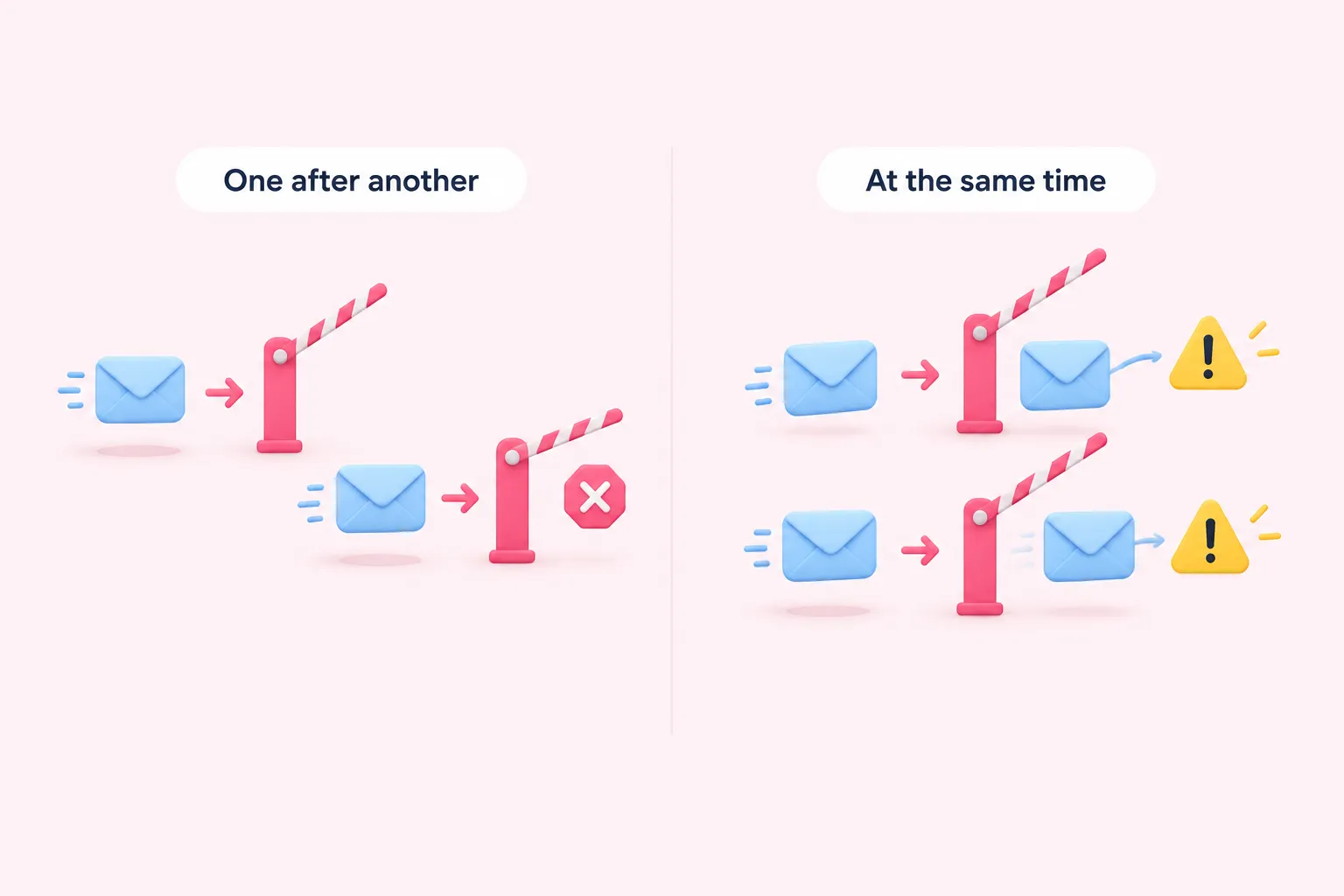
The known limit: the docs used here don't promise that the check and the insert happen as one atomic step, and they don't mention unique constraints. Two identical requests that arrive at the same moment could both pass the check and both run the side effect. This setup is designed to catch retries that arrive one after another, but we haven't tested it firsthand, and it doesn't guarantee protection against requests that arrive at the same time. For payments or other critical side effects, rely on a system that enforces a unique constraint at the database level.