

n8n Queue Mode Docker Compose Exercise: Prove a Worker Ran the Job
A hands-on exercise in n8n queue mode with Docker Compose: the services, environment variables and log check that confirm a worker ran the job.

Checked against the cited sources on .
Editorial exercise: task statement and goal
This is an editorial exercise: a task to try in your own environment, not a report of us running it. The goal is to stand up n8n queue mode with Docker Compose, wiring a main process, a Redis queue and at least one worker, then prove that a worker, not the main process, actually executed a job. n8n's own benchmark post, covering a September 2025 test run and published in n8n's January 2026 blog, frames queue mode as the first required step toward scaling a self-hosted instance rather than an optional extra, which is why this exercise builds queue mode specifically instead of staying with one container.
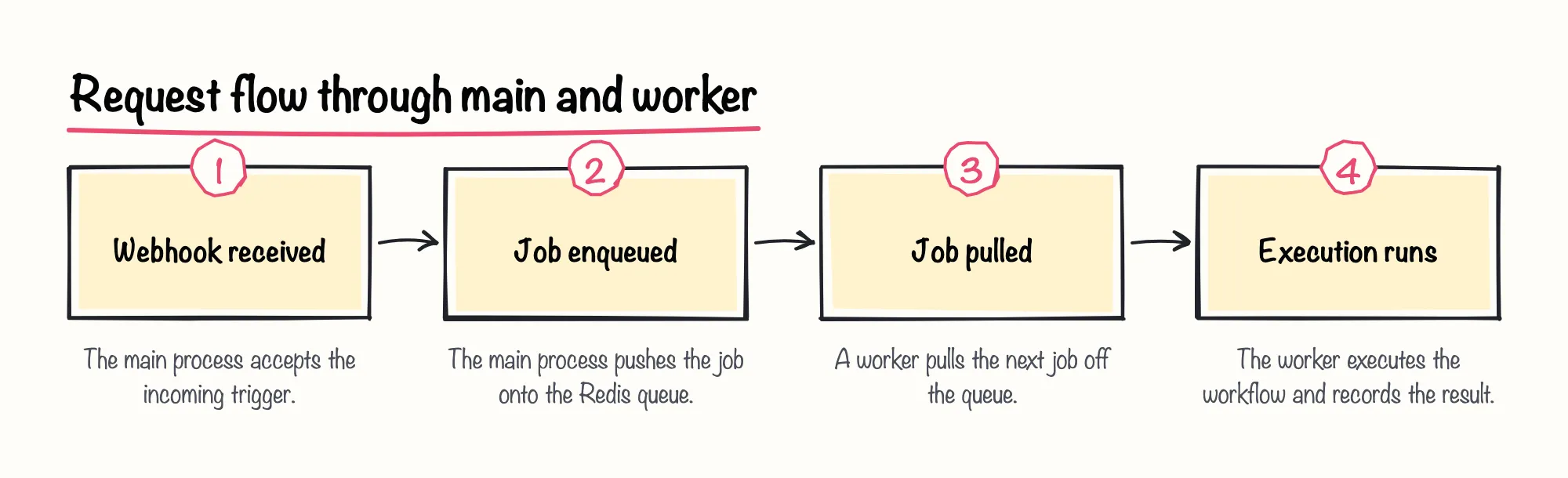
In n8n's documented queue-mode architecture, the main instance receives triggers such as webhooks while separate worker instances perform the actual workflow executions; your Compose file has to reproduce that split faithfully, or you have not really tested queue mode at all. We think this separation is the single most important idea to internalize before touching Docker Compose, because every environment variable and every troubleshooting step below exists to serve it.
Sources: The n8n Scalability Benchmark – n8n Blog, Enable queue mode | Deploy | n8n Docs
Prerequisites and inputs for n8n queue mode
Before opening a compose file, n8n's Docker installation docs list two prerequisites: Docker Desktop, which bundles Docker Compose, and working knowledge of configuring and securing servers and containers. n8n itself currently marks that page as outdated, so treat only those general prerequisites as current, not any version numbers or commands it lists.
Running n8n queue mode with Docker Compose needs four service inputs: Redis for the job queue, a database, a main n8n process, and one worker process. We'd recommend deciding on Postgres from the start rather than retrofitting it later, since swapping the database underneath a running queue-mode setup is far more disruptive than choosing it up front.
| Service | Role | Key setting |
|---|---|---|
| Redis | Holds the job queue between main and workers | Default port, reachable by host name from other services |
| Database | Stores workflows, credentials and execution data | Postgres recommended from the start, per our own guidance |
| Main | Receives triggers and enqueues jobs | EXECUTIONS_MODE=queue, shared encryption key |
| Worker | Pulls jobs from the queue and executes them | EXECUTIONS_MODE=queue, same encryption key, optional --concurrency flag |
Two settings have to match across every service. n8n's docs instruct setting EXECUTIONS_MODE to queue on the main instance and on every worker, and they state that the main instance's encryption key must be shared with all worker nodes, since workers need it to decrypt stored credentials.
Sources: Install with Docker | Deploy | n8n Docs, Enable queue mode | Deploy | n8n Docs, Executions | Deploy | n8n Docs, Control concurrency | Deploy | n8n Docs
Build steps: setting up n8n queue mode with Docker Compose
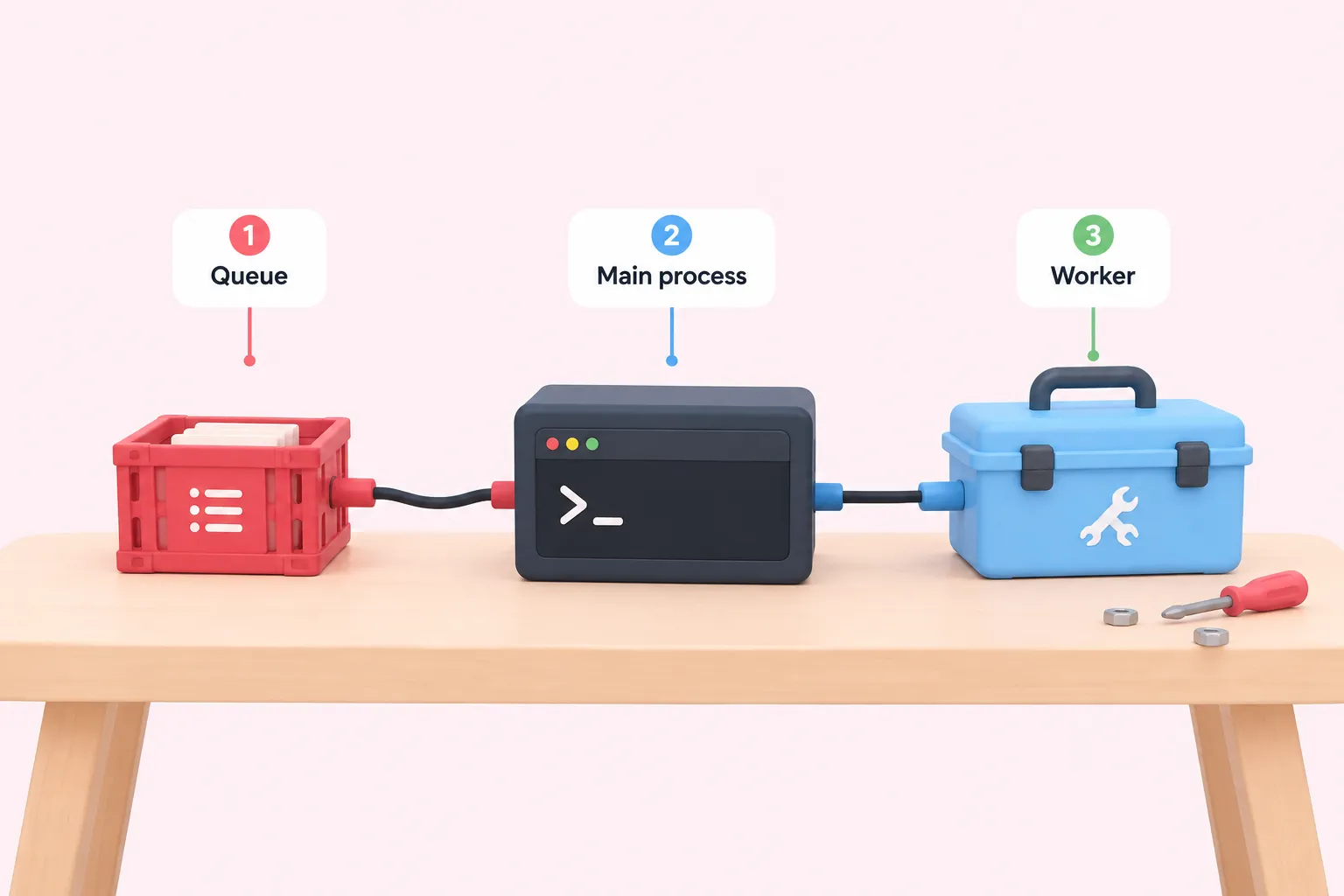
Here is n8n queue mode with Docker Compose, broken into services you add in this order.
- Add a Redis service with no special environment variables, reachable internally by other services.
- Add a database service, with its credentials and a persistent volume.
- Add a main service with EXECUTIONS_MODE=queue, the database connection, the Redis host and port, the shared encryption key, and a published port for the editor and webhooks.
- Add a worker service with the same EXECUTIONS_MODE, encryption key, database and Redis settings, started with the worker command and no published port.
n8n's docs describe per-worker concurrency, how many jobs one worker runs in parallel, as a separate mechanism from regular-mode concurrency, controlled with the --concurrency flag, while the broader production-execution concurrency guard is disabled by default on self-hosted instances. For a first pass at n8n queue mode docker, leave both at their defaults and start with a single worker; tune concurrency only once the basic main-Redis-worker flow is confirmed working.
Sources: Enable queue mode | Deploy | n8n Docs, Control concurrency | Deploy | n8n Docs, Executions | Deploy | n8n Docs
Completion criteria: proving a worker ran the job
Completion for this exercise means more than it did not error. You need to trigger a webhook workflow and show that the entry for that specific execution appears in the worker's log, not just the main process's log. The supplied n8n docs do not give one worked example for this; the method below combines two separate documented features editorially, so treat it as our own combination rather than an official procedure.
n8n's docs recommend giving each worker a unique event log path when workers share a writable filesystem, and separately describe debug as the most verbose log level, with output sendable to console, file, or both. Set the worker's log level to debug and point it at its own file, trigger the webhook, then open that file and confirm the execution shows up there.
One caveat worth stating plainly: n8n documents a Settings > Workers page for watching running workers, but only on self-hosted Enterprise and n8n Cloud Enterprise plans, so Community-edition readers following this exercise cannot rely on that UI and need the log-based check above instead.
Sources: Enable queue mode | Deploy | n8n Docs, Set up logging | Deploy | n8n Docs
Troubleshooting and reflection
In our experience, a good first check is whether the worker can decrypt credentials, since that often traces back to a mismatched encryption key between main and worker. From there, check whether the worker can reach Redis at all, since a Compose networking mismatch is a frequent cause of jobs that queue but never drain, especially when only one worker is running with its concurrency set too low.
- Confirm N8N_ENCRYPTION_KEY matches exactly between main and worker
- Confirm the worker can reach Redis on the configured host and port
- Confirm the database connection details match on main and worker
- Confirm the worker container runs the worker command, not the default main command
It is worth keeping the motivation in view while you debug. That same benchmark measured 72 requests per second, with latency staying under three seconds in a single-webhook load test on queue mode. That is n8n's own self-reported number on specific test hardware, not a guarantee for your setup, so treat it as context for why the architecture matters rather than a target to reproduce.
We'd be cautious about chasing those throughput figures in a learning exercise: the goal here is a correctly wired main-worker-Redis setup you can explain, not a number copied from someone else's AWS instance.
As a suggested solution, expect a finished exercise to end with the main, worker, Redis and database containers running, a webhook that returns successfully, and a worker log file containing that execution's entry while the main process log shows only that it was received and queued. That is the whole shape of n8n queue mode with Docker Compose for a single worker: if any of those three pieces is missing, the setup is not finished yet, whatever the webhook response looks like.
Sources: Enable queue mode | Deploy | n8n Docs, Control concurrency | Deploy | n8n Docs