
n8n Google Calendar: Check Availability Before You Book a Meeting
Build an n8n Google Calendar check availability step that blocks double-booked slots and only creates events when a time is free.

Checked against the cited sources on .
What You'll Build: The Availability-Check Exercise
This is an editorial exercise, not a published case study: a hands-on build you can test yourself inside your own n8n instance. The target is a small but real n8n Google Calendar check-availability step: a workflow that takes a booking request, confirms whether the requested time slot is actually free, and only creates a calendar event when it is. n8n's Google Calendar node includes a dedicated Calendar Availability operation built specifically to check whether a time slot is free before any booking action runs.
Before you start, you need a running n8n instance, a Google Calendar credential already connected in n8n, and a real calendar you are allowed to test against, since the Availability operation requires choosing the specific calendar to check as a configuration parameter. We'd treat this as its own small workflow first, separate from any booking form or chatbot front end, so the availability result is visible on its own before anything else gets wired in.
Three inputs drive each run: a requested start time, a requested end time, and the ID of the calendar to check. Set these explicitly for the exercise rather than relying on whatever the trigger happens to send, since explicit, fixed inputs make the test repeatable against the same calendar each time.
- Requested start time
- Requested end time
- Calendar ID to check against
- A timezone for both times
Sources: Google Calendar | Nodes | n8n Docs, Calendar operations | Nodes | n8n Docs
Step-by-Step: n8n Google Calendar Check Availability
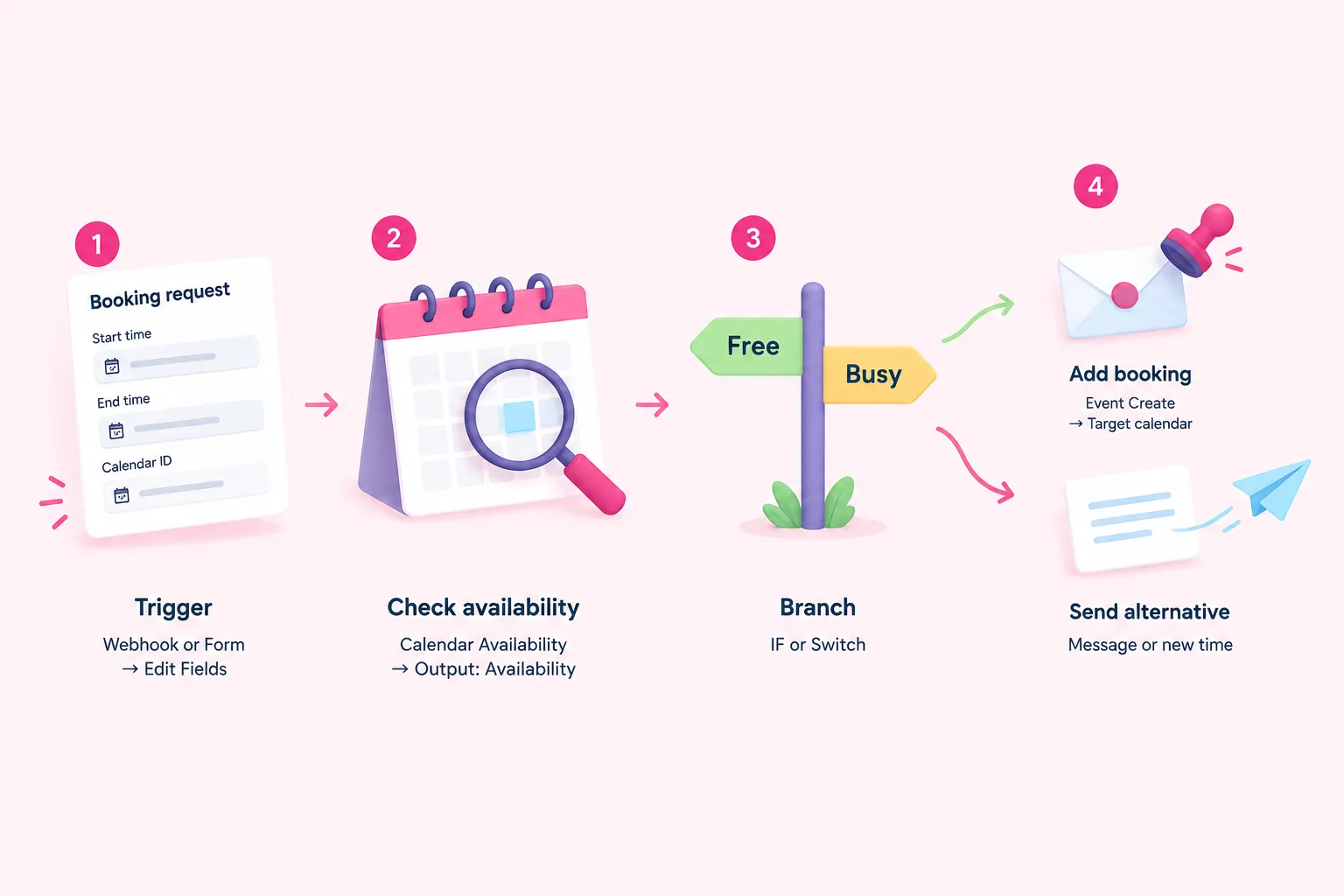
Once the inputs are ready, the workflow itself follows four stages, shown below.
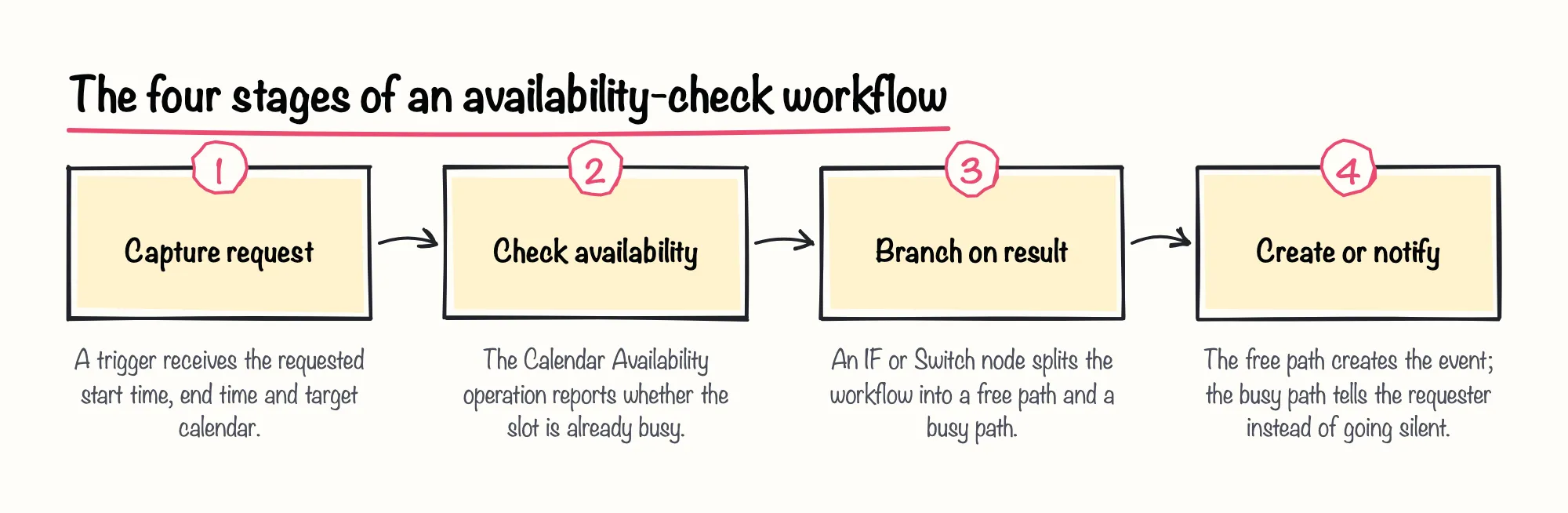
Stage one is a trigger that captures the booking request: a Webhook or Form node receiving the start time, end time and calendar ID, then an Edit Fields node to normalize them into a consistent format for the next step.
Stage two runs the n8n Google Calendar check-availability step itself: the Calendar Availability operation, pointed at the chosen calendar, with Output Format set to Availability. With that setting, the node returns whether any existing events already overlap the requested slot, which is effectively how to check someone's availability in Google Calendar from inside an automated flow rather than opening the calendar app by hand. Under the hood, n8n's documentation describes this operation as calling Google's own free/busy query, which reports free/busy data for a set of calendars.
Stage three branches on that result using an IF or Switch node, the standard way n8n splits one workflow path into several depending on a condition.
Stage four acts on the branch: on the free path, an Event Create operation adds the booking, again after choosing the target calendar as a parameter. On the busy path, resist the temptation to just end the workflow; send the requester a message or an alternative time instead of letting the request disappear silently.
Sources: Google Calendar | Nodes | n8n Docs, Calendar operations | Nodes | n8n Docs, Event operations | Nodes | n8n Docs, API Reference | Google Calendar | Google for Developers, Split with conditionals | Build | n8n Docs
Constraints: Timezones, Output Format and Race Conditions
A few constraints decide whether this exercise behaves predictably. First, timezones: set an explicit timezone on both the requested start and end times rather than leaning on the node's default $now-based expressions, so the same test produces the same result every time you run it.
Second, the output format you choose on the Availability operation matters. With Output Format set to Availability, the node reports a simple overlap result rather than the underlying event list, which answers how to show availability on Google Calendar data without exposing full event details to whatever triggered the check. For this exercise, that simple yes-or-no result is enough, since the next step only needs to decide which branch to take.
Third, race conditions: a community n8n tutorial on building booking flows recommends checking availability immediately before creating the event, keeping the two steps as close together as possible, to shrink the window where two requests could both see the same slot as free. We'd treat a free result from this check as a point-in-time answer, not a lock on the slot, so a production version of this workflow still needs its own duplicate-booking safeguard; that recommendation comes from a vendor blog's own proposed workflow design, not from a tested or measured outcome.
- Explicit timezone on start and end times
- Output Format set to Availability for a simple yes/no branch
- Availability check run immediately before the event-create step
Sources: Calendar operations | Nodes | n8n Docs, Publish technical n8n tutorial with full code examples and screenshots - DEV Community
Completion Criteria, Troubleshooting and a Suggested Solution
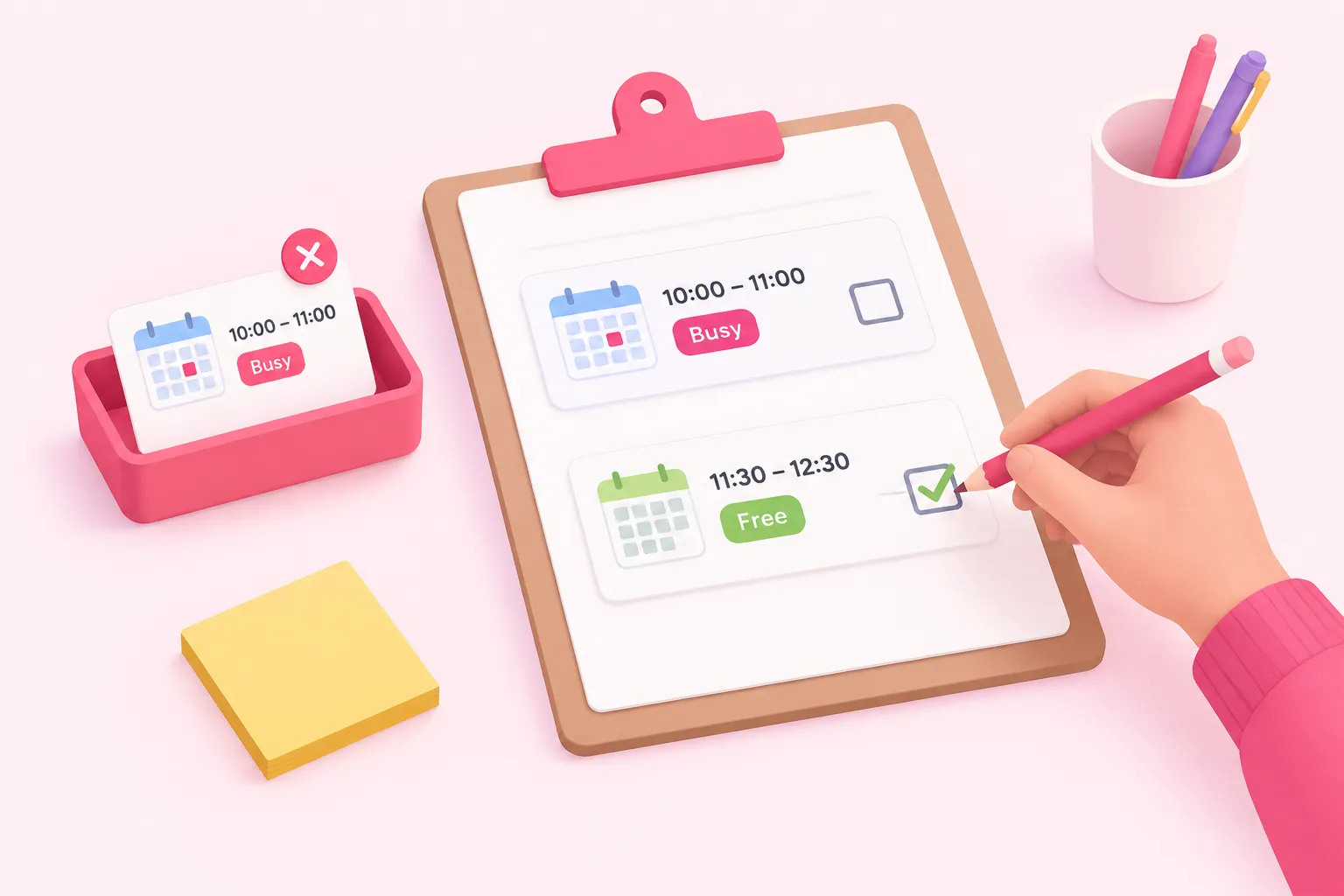
Completion for this exercise has two tests: a request for a slot that's already busy should be blocked rather than booked, and a request for a genuinely open slot should result in the appointment being booked. That second expectation matches the test plan a community tutorial on n8n booking workflows sets for itself, though it describes a proposed test, not a result anyone has independently verified.
Common failures worth checking for: a missing or wrong calendar ID on either the Availability or Event Create operation, since both require that parameter explicitly; a Google Calendar API error that isn't caught at all; and a busy branch that skips the check below for sending the requester some response. The same community tutorial suggests building a separate n8n error workflow to catch failures like a failed calendar API call. We think that's worth doing even for a learning exercise, since it's the difference between a workflow that fails loudly and one that fails invisibly.
A suggested solution, in outline: trigger node capturing start, end, calendar ID and timezone; Calendar Availability operation with Output Format set to Availability; an IF node branching on the result; an Event Create operation on the free path; and a notification step on the busy path, backed by an error workflow for anything the Calendar node can't handle. Build it, run both test cases against your own calendar, and you'll have covered the core of a real n8n Google Calendar check-availability step rather than a trigger-to-action demo.
Sources: Publish technical n8n tutorial with full code examples and screenshots - DEV Community, Calendar operations | Nodes | n8n Docs, Event operations | Nodes | n8n Docs